View plan line details
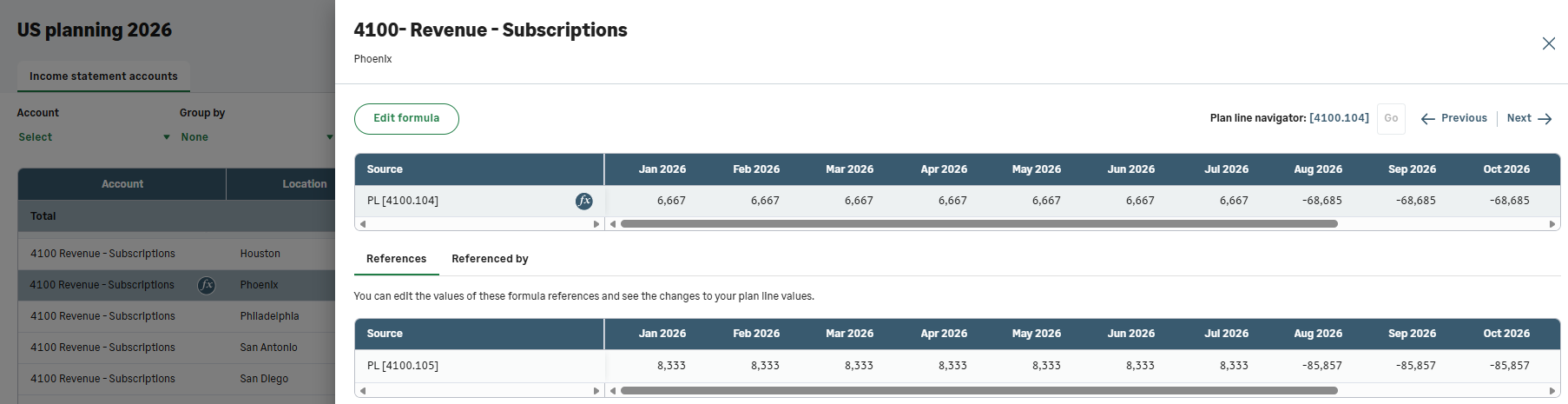
In the plan line details flyout, view and edit data that relates to a plan line, jump between plan lines, and see the impact of your changes all in one place.
Open plan line details
Start
-
Navigate to a plan line and do one of the following:
-
Double-click the plan line account or a dimension.
-
From the right column select
 and then View details.
-
Change current plan line data
Start
To edit the current plan line data, do one of the following:
-
Edit data cells: At the top of the flyout, edit or adjust the data cells of your current plan line just like in the plan grid. See Modify plan data.
-
Add formula: If no formula exists for this plan line, select Add formula.
-
Edit formula: If the plan line has a formula, select Edit formula.
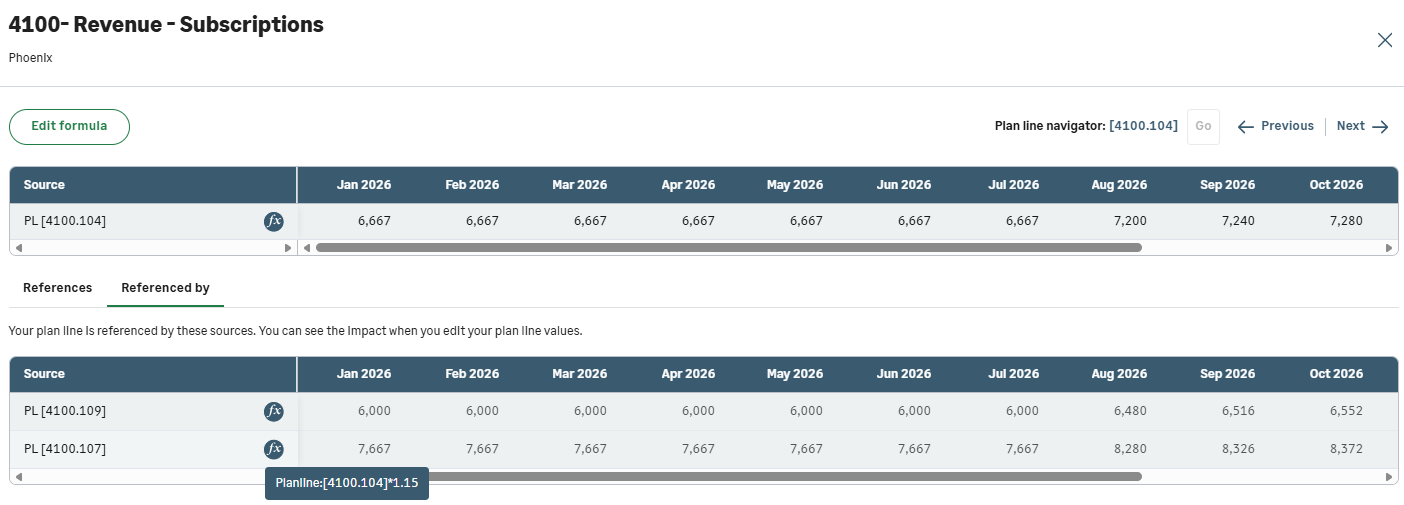
To glimpse the formula details, hover over (or press and hold)
 . For more information on formulas, see Add or edit a formula.
See how changes impact other parts of the plan
The Referenced by tab shows all plan lines that reference the current plan line. When you change data in the current plan line, the data in these plan lines is updated too.
Referenced by sources only appear if you have permissions to access those accounts and dimensions.
Edit references data
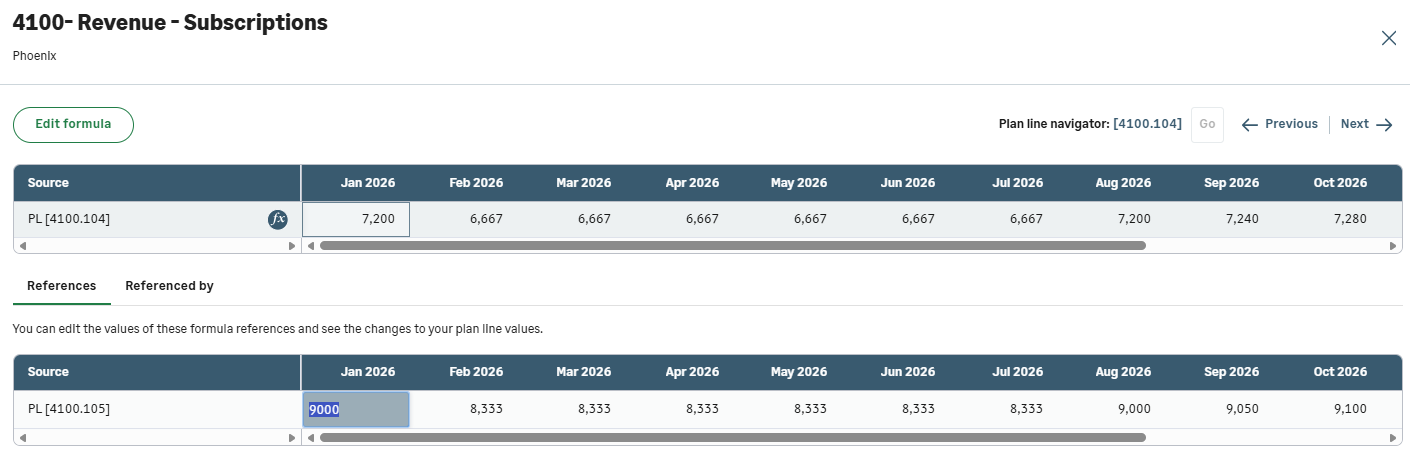
If your plan line formula references other plan lines, they appear in the References tab. Modify these plan lines to see how the changes impact your current plan line.
Start
-
In the References tab, edit plan line data, as discussed in Modify plan data.
-
At the top of the flyout, see how your changes impact the current plan line.
References only appear if you have permissions to access those accounts and dimensions.
Navigate to another plan line
You can navigate to a different plan line without leaving the plan line details flyout.
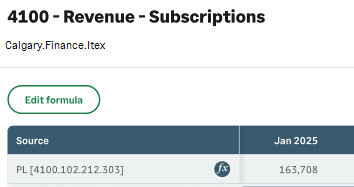
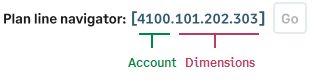
The current plan line appears at the top of the flyout. The plan line source shows the numeric string of the current plan line account and intersecting dimension values.
Start
To navigate to a different plan line, do one of the following:
-
Previous: Open the preceding plan line.
-
Next: Open the next plan line.
-
Specific plan line: Select plan line account and dimension values from the Plan line navigator, and select Go.
Save and close plan line details flyout
All changes made in the plan line details are automatically saved to the plan.
To close the plan line details flyout, select  or click anywhere outside the flyout.
Is this helpful?
In this topic