Use formulas
Formulas are advanced calculations that you add to plan lines.
A formula can include the following:
-
Values: Whole numbers, decimals, or percent.
-
Operators: + , - , * , / , % , and ( )
-
Plan line references: Create dependencies between the current plan line and referenced plan lines. as discussed in Insert plan line references.
Add or edit a formula
In the plan grid,  indicates the plan line has a formula. If you have permissions, you can edit the formula or add formulas. See Who can add, edit, or remove formulas?
Start
To add a new formula to a plan line or to edit an existing formula, navigate to a plan line and do the following:
-
 , and then do one of the following:
-
-
Select View details and then Add formula or Edit formula. For more information, see View plan line details.
-
-
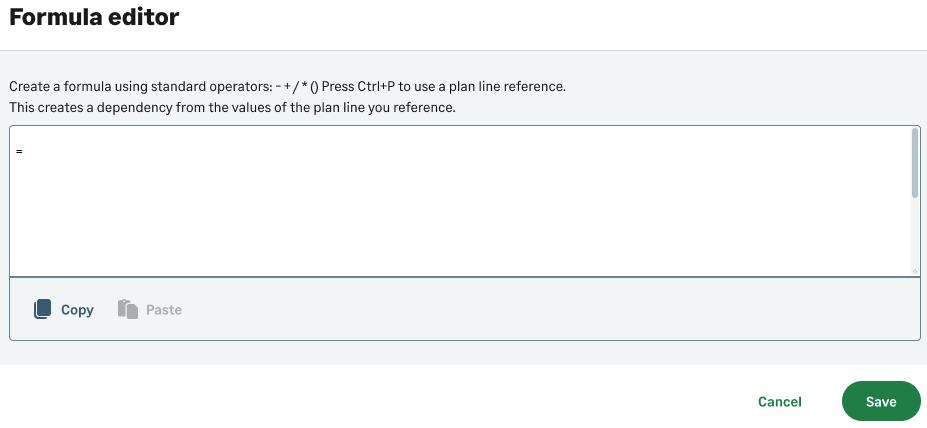
To add or edit a formula, do the following:
-
Enter calculations with numbers and standard operators.
-
Add plan line references as described in Insert plan line references.
-
Copy and paste formulas, as follows:
-
 Copy: Copy formula from the formula editor to the clipboard
 -
 Paste: Paste the copied formula to the formula editor
Your browser might ask you to allow the use of the clipboard for this site to paste data in your plan.
How to allow clipboard in your browser-
With Sage Planning open in your browser, navigate to the View site information icon that appears in the browser address bar to the left of the url address.
-
Allow clipboard. For example, in Chrome, go to Site settings > Privacy and security > Clipboard. Select Allow.
-
Refresh or reload the page (Ctrl+R).
-
-
-
-
Select Save.
Insert plan line references
Plan line references in a formula create dependencies between plan lines. After you create the dependency, when you update a referenced plan line, the plan line with the formula updates too.
-
In each formula, you can add as many plan line references as needed.
-
In each plan line reference, you can reference a single or multiple plan lines.
-
The values of each time period depend on the corresponding time periods of the referenced plan lines.
Start
To add a plan line reference, do the following:
-
With the cursor in the formula editor, press Ctrl+P on your keyboard.
If caps lock is on, you may launch your print dialog instead.
-
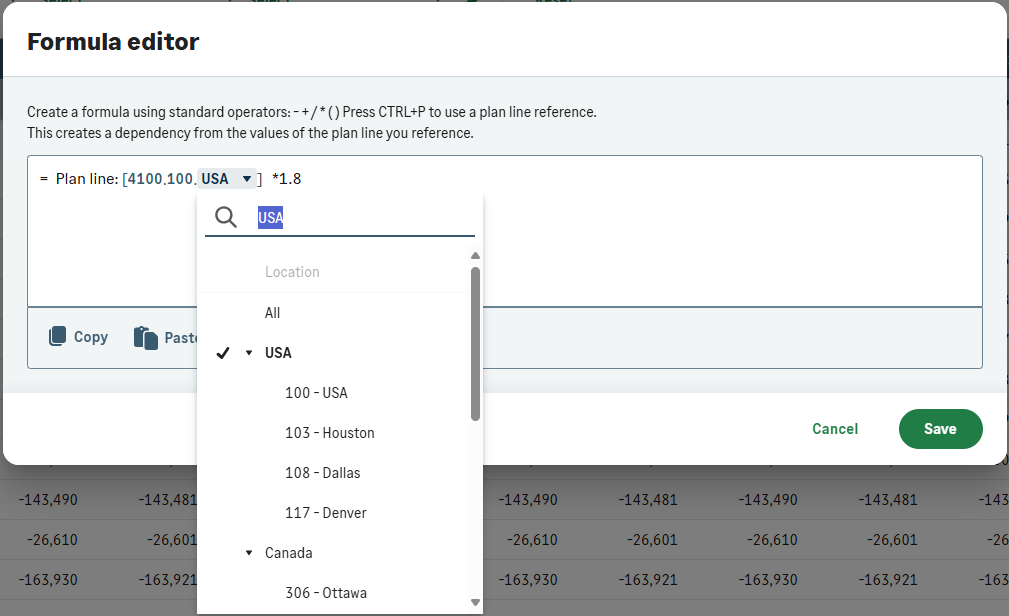
Select an account and dimensions of the plan line you want to add as a reference.
Plan line reference options-
The dropdown lists are filtered to only include values associated with your previous selections.
-
From each dropdown list, you can select a single value, a parent value that includes multiple values, or all values.
-
If your selection includes multiple values, the aggregated value of all these plan lines is added to the formula calculation.
Example of selecting a parent value in a plan line referenceSelect USA to include all available USA locations, or All to include all available locations worldwide.
Quick tips to find plan lines to reference-
Enter the name or number of the account or dimension instead of scrolling.
-
Press Tab to navigate to the next selection, or Shift+Tab to return to the previous selection.
-
Hover over (or press and hold) the account and dimension values to see the details behind the numbers.
-
-
Ensure that no dimension values appear in red, which indicates that no such plan line exists for the current combination.
Example of a plan line reference that does not existAccount 4130 with dimension 101 does not exist in this plan, so you need to select a different combination to make the plan line reference valid.

-
Select Apply.
If you try to apply a formula that references the current plan line directly or indirectly, this creates a loop error. To resolve this, select Remove or change the formula and Apply again. If you are unsure why the loop error message appears, check the Referenced by tab in the plan line details flyout. Your formula can't reference any plan line listed there, because those plan lines reference back to the current line.
-
(Optional) Edit data of a referenced plan line
After you apply a formula with referenced plan lines, you can view and edit the referenced plan lines data in the References tab of the plan line details flyout. See Edit references data.
Coffee Bean is trying to project sales for a new branch opening in Notting Hill next year. The marketing team thinks that revenue will mirror the performance of their Soho location, with a 10% increase.
Sophie, the marketing manager, adds a formula that references the sales plan line of the Soho branch [4100.100. 411] and adds 10%.

This dependency is convenient for Sophie. When the projections at the Soho branch changes for October through December, Sophie knows the corresponding months at the Notting Hill branch adjust accordingly.
Africa Tours offers a new product - an 8 day all inclusive safari travel package to Kenya. Emma, the sales director at Africa Tours, has a number of agencies that sell the new product. She wants agency commissions to be dependent on the sales revenue for the new product.
She adds a formula to all the regional sales teams commission plan lines that reference the revenue plan line for the new product. Now, if she adjusts the sales projection for any time period, she can see the effect it has on the same time period of the commission plan lines.
Remove a formula and edit the data
To manually edit individual cell data of a plan line that relies on a formula, you first need to remove the formula. After you remove the formula, the plan line values determined by the formula remain as is. You can edit or adjust the cells data manually as described in Modify plan data.
Start
-
Navigate to a plan line.
-
From the right column, select
> Remove formula > Remove.
Who can add, edit, or remove formulas?
The following table summarizes who can add, edit, or remove formulas:
| Role | Formula capabilities |
|---|---|
|
Owner |
Can create, edit, and remove all formulas. |
|
User |
|
|
User with extended access |
|
| Who can add, edit, or remove formulas | |

Is this helpful?
In this topic