Owners only
Merge wizard
The merge wizard enables you to incorporate changes from one version into another. This helps you stay in control of the final plan while you incorporate input from multiple contributors. It provides clear visibility into what changed, and supports healthy collaboration.
In this merge topic, we refer to the following versions:
-
Source: The version that contains changes
-
Target: The version to merge changes into
Mandy is the CFO of a London-based bookstore chain. She creates Draft FY2027 for all five stores and asks each store manager to review the portion of the plan relevant to their location.
Mandy creates a version for Wilson, the manager of the Covent Garden store. She names it Covent Garden draft FY2027, shares it with him, and grants permission to view the relevant accounts and dimensions. Wilson updates the version and notifies Mandy when he is finished.
From Draft FY2027, Mandy opens the merge wizard and selects Covent Garden draft FY2027 as the source. She previews the changes, and then merges them into Draft FY2027.
Mandy stays in control of the working plan while she incorporates input from each store. She can review changes, maintain an audit trail, and merge updates with confidence, with full visibility into the numbers.

-
Open a plan that you want to merge changes into.
-
Select Actions > Manage versions > Merge.
The Merge button only appears if you create at least one version of the plan.
-
From the Version dropdown list, select a version of the plan you are working on that you want to take the changes from, and then select Next.
If changes are found, the changes grid appears. Each line represents a change to merge into the target. For more details, see Description of the changes grid.
If no changes are found, select Back and select a different version, or Cancel to exit the wizard.
-
(Optional) Filter by accounts and dimensions to focus on specific changes.
Filters help you view changes. However, when you merge, all changes that you select merge, regardless of which filters you apply.
-
To select which changes to merge, do one of the following:
-
Select all changes: By default all changes are selected.
-
Select specific changes: Clear the top checkbox, and then select the checkboxes that appear next to the changes you want to merge.
Any time you update your selection of which changes to merge, you need to Refresh. The reason this is required is because your change in selection may affect other plan line values that you want to merge.
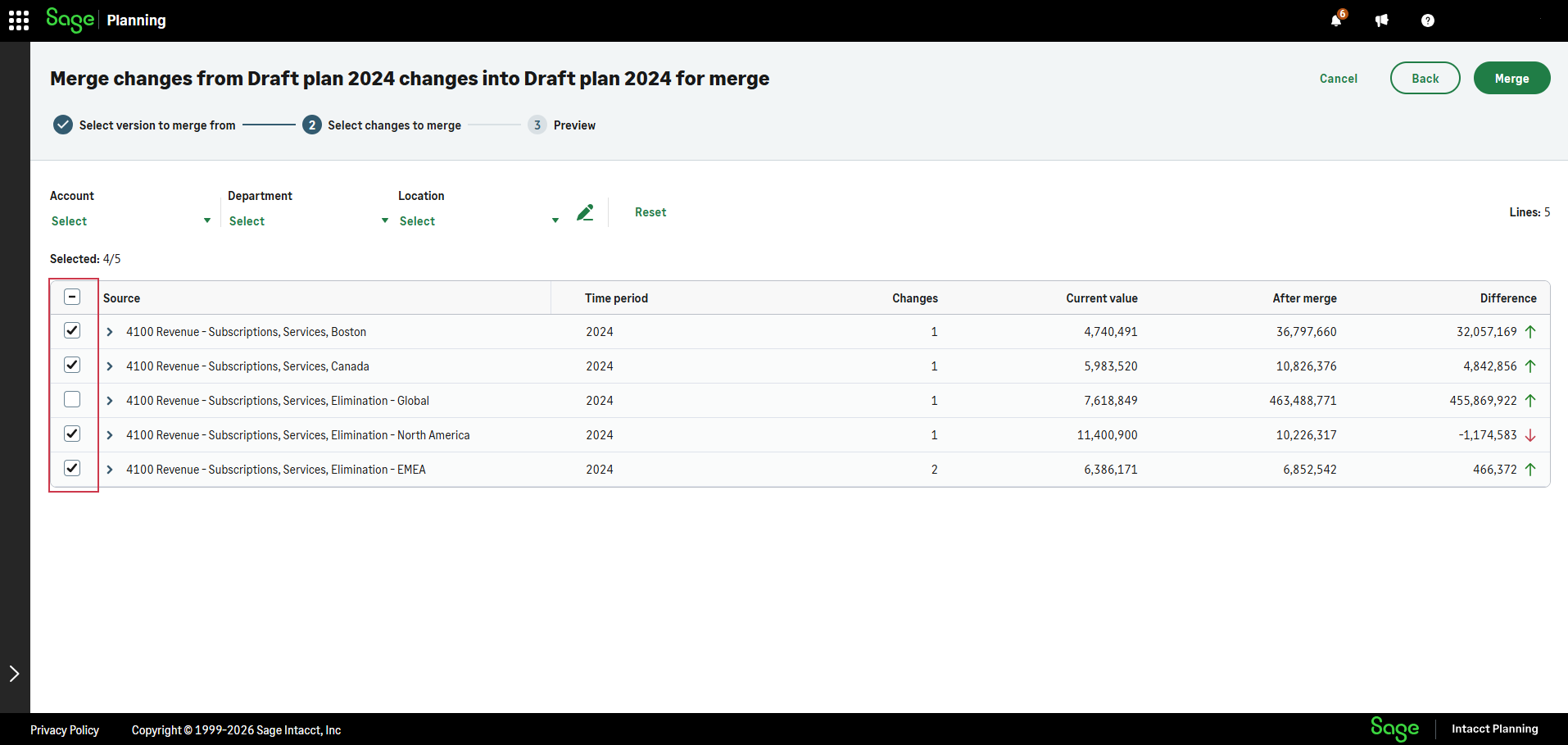
A change that creates a merge conflict, such as a loop or broken dependency, is flagged with
 and unselected from the list of changes to merge. For more information about how to resolve merge conflicts, see Resolve merge conflicts.
-
-
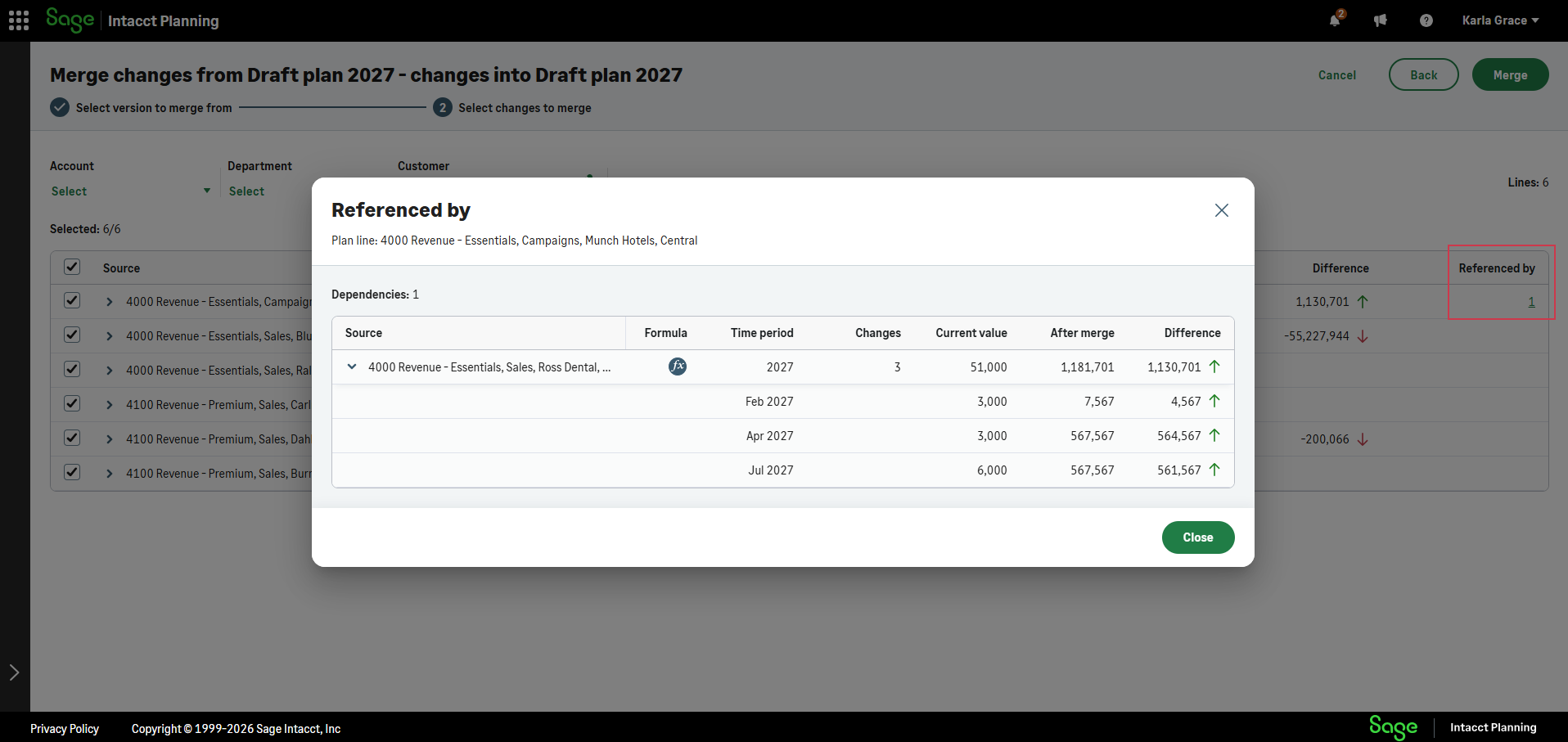
Some plan lines might contain formulas that reference other plan lines, and the merge affects the values that the formula generates. To view these plan lines, navigate to the plan line and select the number that appears in the Referenced by column. If there are no dependencies, it appears blank.
In the Referenced by window, review the changes and select Close.
-
Select Next to preview the changes.
-
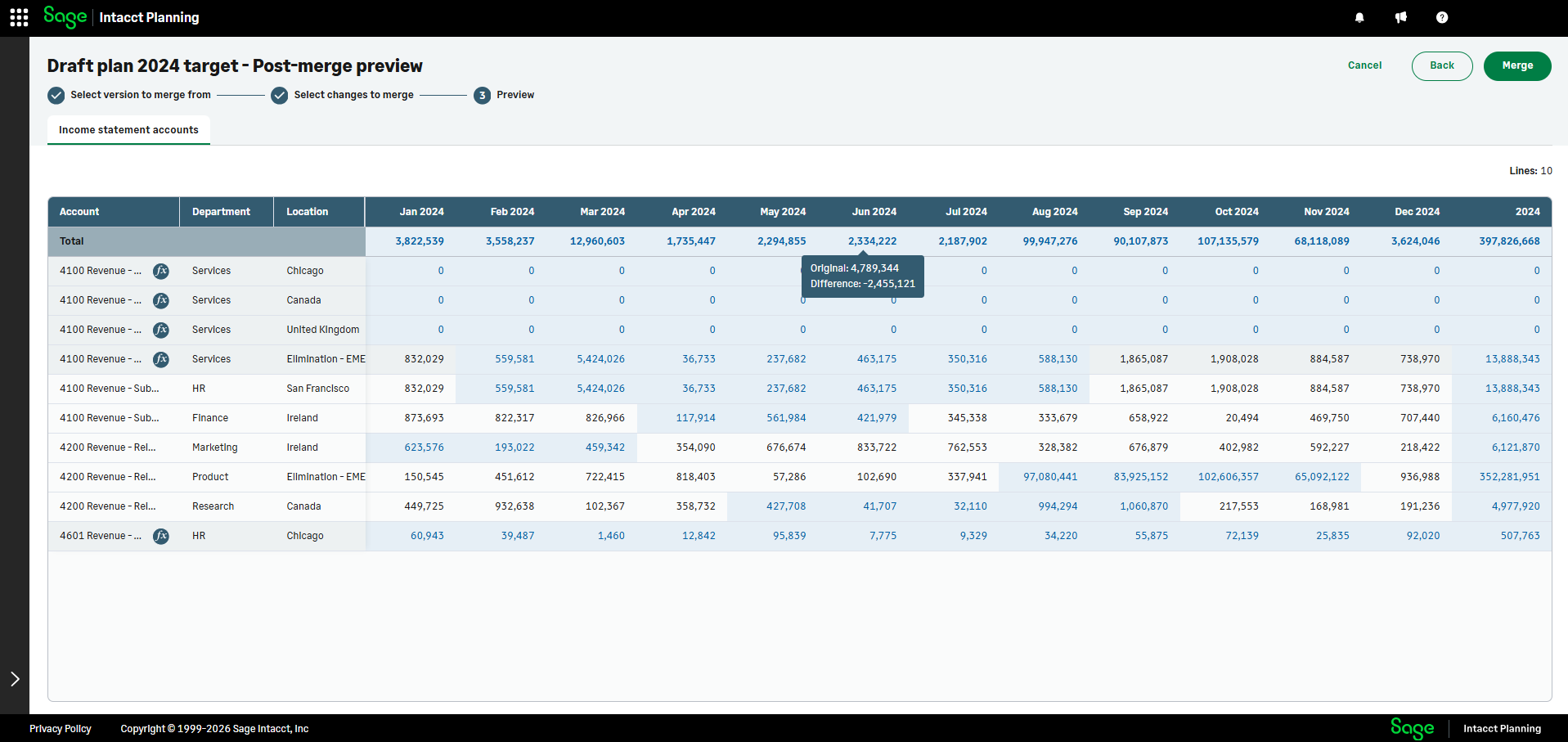
In Preview mode, changes appear in blue highlight, as follows:
-
Individual changes
-
Time period totals
-
Plan line totals
-
Total of totals
This helps you get an idea of how your plan looks after you merge.
Hover over (or tap and hold) a change to see the original value and the difference.
-
-
Select Merge.
Description of the changes grid
| Column | Description |
|---|---|
|
Source |
The plan line that contains changes. If a plan line contains multiple changes, select |
|
Time period |
The plan year that contains changes. In a multi-year plan, select |
|
Changes |
The number of changes in the plan line. |
|
Current value |
The following can appear:
|
|
After merge |
The following can appear:
|
|
Difference |
The difference between pre-merge and post-merge values. |
|
Referenced by |
Shows the amount dependencies that are directly affected by a change, if any. This helps you zoom in and get the full context of what changes occur after you merge. |
| Description of the changes grid | |
 to view each change line by line.
 : If a formula changed. Hover over (or tap and hold) to see the current formula.
Resolve merge conflicts
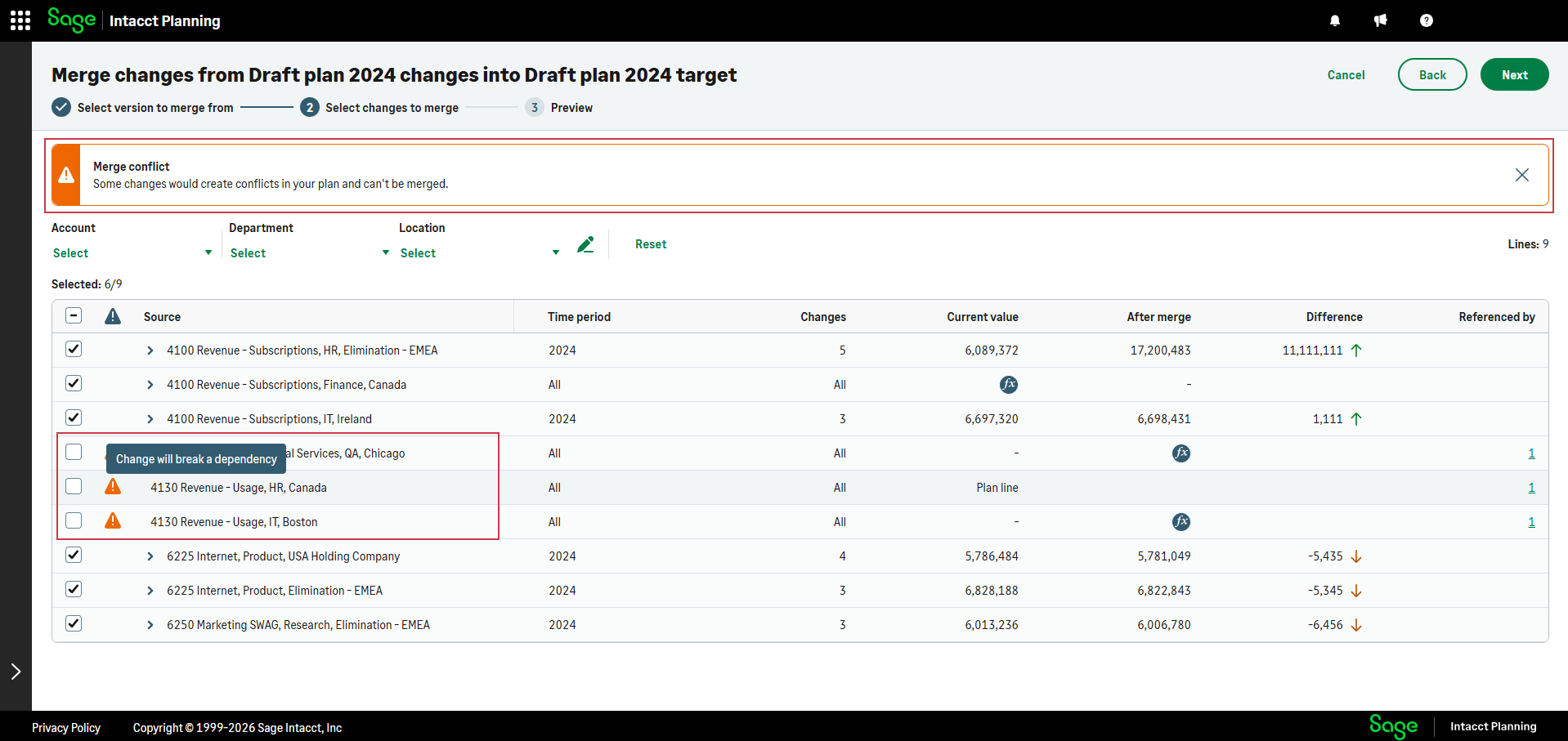
When you merge changes from one version into another, the merge wizard flags merge conflicts and excludes them from the merge. This happens because these changes would create invalid formulas or invalid dependencies in the target version. When you hover over (or tap and hold) , the reason for the merge conflict appears.
The following merge conflicts can occur:
-
Changes will cause a loop: Merge would create a circular dependency between plan lines.
-
Changes will break a dependency: A plan line that is required by another plan line is deleted.
-
Change references a plan line that was not found: A change depends on a new plan line, but the new plan line is excluded from the merge.
In the target version, plan line A contains a formula that points to plan line B.
In the changes version, plan line B contains a formula that points back to plan line A.
The merge would create a loop.
To resolve, update one of the formulas so the loop no longer exists.
In the target version, plan line A contains a formula that points to plan line B.
In the changes version, you delete plan line B.
Merging this change would leave plan line A pointing to a plan line that no longer exists.
To resolve, don't merge the change that deletes plan line B, or update the formula in plan line A.
In the changes version, you add plan line A. You then add a formula to plan line B and reference plan line A.
You select to merge the changes to plan line B but not the addition of plan line A.
To resolve the conflict, merge plan line A too.
The following table summarizes merge conflicts:
| Merge conflict | Possible causes | Possible resolutions |
|---|---|---|
|
Changes will cause a loop |
A circular dependency would be created between plan lines. |
Update the formulas to remove the loop. |
|
Changes will break a dependency |
You try to merge a change that deletes a plan line which is referenced in a formula by another plan line. |
Don't merge the change that deletes the missing plan line, or update the formula that references the missing plan line. |
|
Change references a plan line that was not found |
You add a plan line, and then reference the new plan line, but you excluded the new plan from the merge. |
Merge the new plan line too. |
|
Merge conflicts, causes, and possible resolutions |
||
Is this helpful?
In this topic