Navigate employees
In Workforce > Employees, each salary line represents the salary calculation for each employee. Let's take a look around.
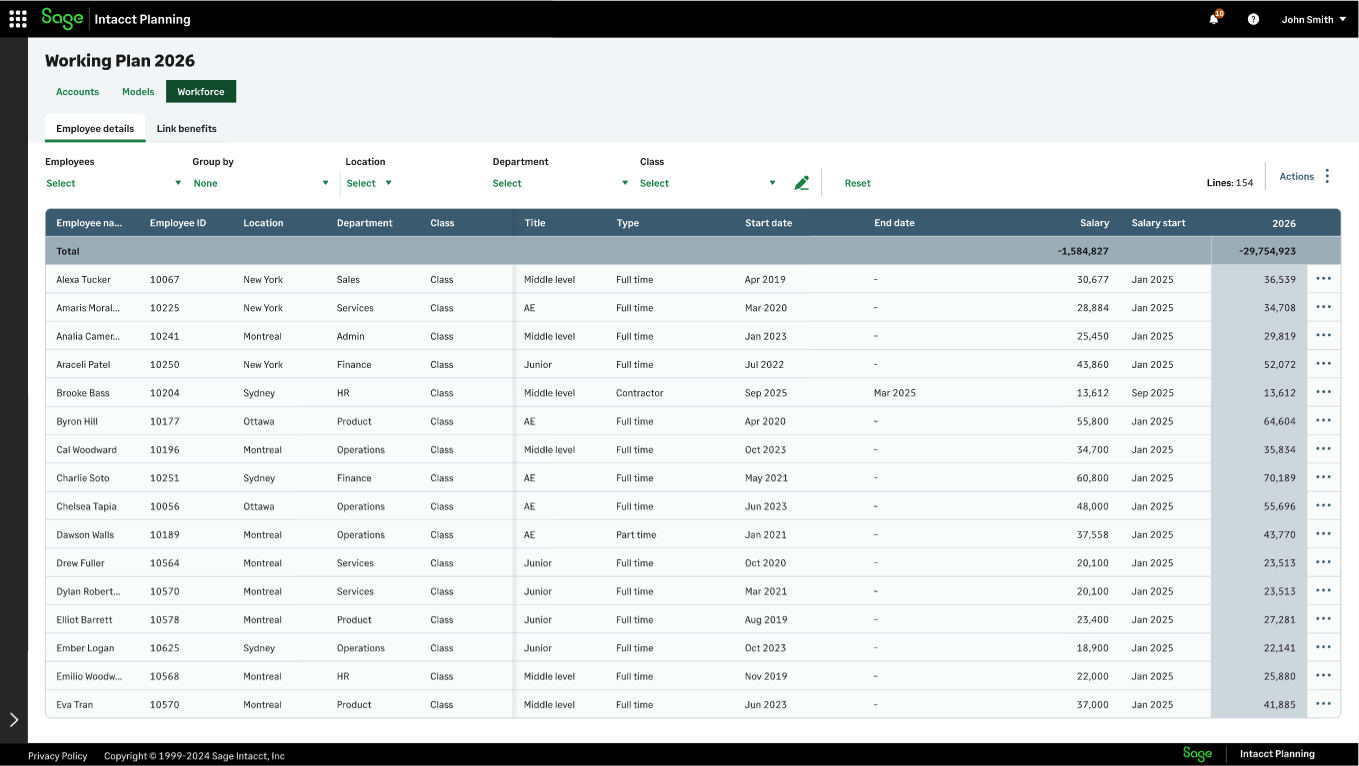
The following columns appear in the Employees grid:
| Column | Intacct source | Description |
|---|---|---|
|
Employee name |
Expenses > Employees |
The following employees appear:
|
|
Employee ID |
Expenses > Employees |
Unique employee number |
|
Dimensions |
Dimensions that you associate with your workforce accounts when you create the plan. Location is default so always appears. If your plan has the Project dimension, you can Assign projects to existing employees. |
|
|
Title |
Expenses > Employees > Employee information |
The job the employee performs. |
|
Type |
Expenses > Employees > Employee type |
|
|
Start date |
The start date of employment. |
|
|
End date |
Expenses > Employees > Employee information |
The start date of employment. Only appears if:
|
|
Salary |
|
|
|
Salary start |
The date that Salary is calculated from. If an employee has multiple annual salaries, such as a mid-year raise, the number of salaries appears in brackets. |
|
|
Year |
The total annual salary and benefits for each employee. For multi-year plans, each year appears in its own column. |
|
|
Description of the employee details grid columns |
||
Filter the employees grid
Start
-
To filter which salary lines appear in the employee details grid, do any of the following:
-
Filter by employee name: From the Employees dropdown list, select one or more employees.
-
Group by dimension: From the Group by dropdown list, select one or more dimension.
-
Group by employee: From the Group by dropdown list, select Employees. You can now differentiate between the following:
-
New hires: New hires that you add in Planning, as discussed in Add new hire.
-
From Intacct: Employees that you import from Sage Intacct.
-
-
Filter by dimension value: From one of the dimension dropdown lists, such as Location, select one or more dimension values.
You can apply multiple filters at the same time. To see all employees, select Reset.
-
Is this helpful?
In this topic