Get started with workforce planning
Only owners or users that are granted permissions by owners can see the workforce tab.
A large percentage of any fiscal plan is dedicated to workforce expenses, namely salaries and benefits.
Planning has a dedicated workforce tab which gives you the flexibility to manage these expenses, and enables you to assemble your workforce data in a meaningful way.
Workforce lines appear in the income statement accounts tab after you link them with employment benefits, as discussed in Link employment benefits.
Add workforce data to a new plan
You can only import workforce data when you create a new plan, as described in Create new plan. When you create a plan from a plan, as described in Create plan from plan, workforce data is not available.
Start
-
From the side menu, select Plans > Create a plan.
-
Enter a Name and Description, and in Plan template, select None.
-
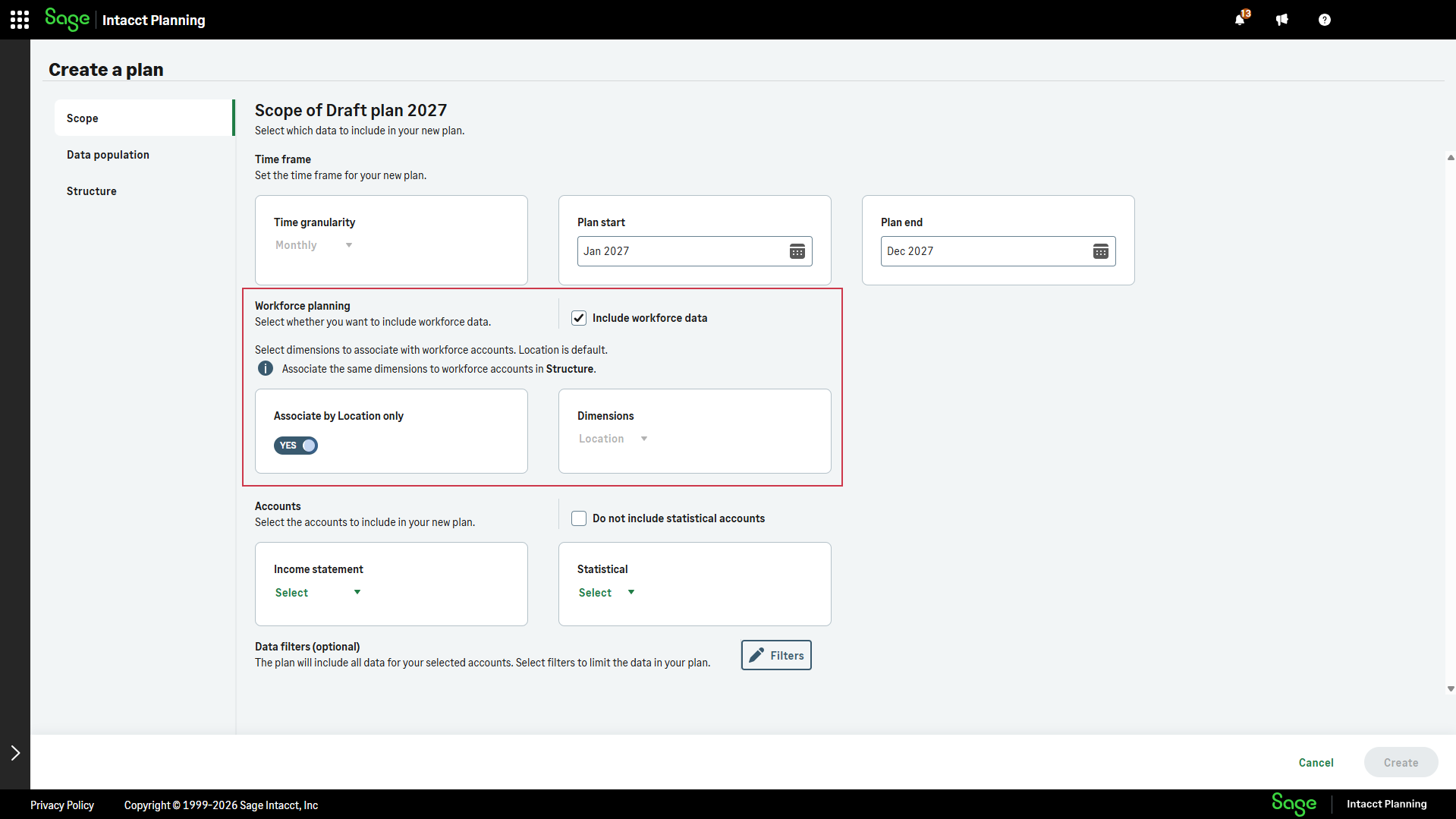
From Create a plan > Scope, check the Include workforce data checkbox.
-
To select dimensions to associate with workforce accounts, do one of the following:
-
By location only: Toggle Associate by Location only to YES.
-
By Location and other dimensions: From the workforce Dimensions dropdown list, select the dimensions that are relevant to your workforce accounts.
-
-
From the workforce Dimensions dropdown list, select the dimensions that are relevant to your workforce accounts.
Your workforce plan lines are a combination of the accounts and dimension values that you select in this step.
-
From the Structure tab, associate your workforce accounts with the same dimensions that you select in step 4.
Example of associating dimensions to workforce accountsCathy is the CFO of Streets of Hope - a charity that operates an afternoon care center for underprivileged children as well as a soup kitchen.
Since donors select which project they want to support, Streets of Hope pays part-time and full-time salaries based upon donations received by project.
In the Scope tab of her new plan, Cathy selects Location and Project from the workforce dropdown list. She then makes sure to associate the workforce accounts, such as 6100 Salaries and 6200 Pensions, with Location and Project in the Structure tab too.
-
For all other new plan preferences, follow the procedures in Create new plan.
Next steps
Is this helpful?
In this topic