Manage employees
Add new hire
Although the Employees grid headcount is based on data from Sage Intacct, you can add new hires in Planning. This enables you to forecast the future headcount and see how it effects your plan.
Start
-
In Workforce > Employees, select Actions > Add new hire.
-
Enter a unique name for the new hire.
You can create placeholders as long as the name is unique. Enter a logical name so that you can easily locate it. For example: Office Administrator or Data Analyst.
-
Select a dimension value for each dimension. Location is default and mandatory.
-
In Title, enter a job type for the new hire.
-
In Type, select whether the new hire is Full-time or Part-time. This determines the Salary format for the new hire.
-
In Start date, select
 and then select the month the new hire will start.
 -
(Optional) Select an End date if you know when the employee will end employment. For example: a temporary contractor.
-
Enter the new hires salary details, as discussed in Edit full‑time employee salary and Edit part‑time employee salary.
-
To add another new hire after you save, check Add another.
-
Select Save.
Edit employee details
Start
-
Navigate to the right column of an employee.
-
Select
 and then Edit.
 -
Select the Details tab, and make the changes you need.
The details that appear depends on whether the employee is a New hire that you add in Planning, or an employee that you import From Intacct, as follows:
-
New hires: Name, Dimensions, Title, Start date, End date.
-
From Intacct: Project, Start date, End date
-
-
Select Save.
Edit full‑time employee salary
Start
-
Navigate to an employee defined as Full-time in the Type column.
-
On the right of the salary line, select
and then Edit.Navigate between employees with Next and Previous.
-
In the Salary tab, select +Add salary.
-
Enter an Annual salary. For example: gross monthly salary x 12 months.
-
From Salary start, select a month for the salary to be paid from.
-
To record a new salary to be paid from a specific month onwards, such as a salary increase, repeat steps 3-5.
You can only enter one salary per month.
-
To remove a salary line, select Remove.
-
Select Save.
Edit part‑time employee salary
Start
-
Navigate to an employee defined as Part-time in the Type column.
-
On the right of the salary line, select
and then Edit.Navigate between employees with Next and Previous.
-
In the Salary tab, enter the expected work hours per month for this employee under Hours per month. The default is 0.
-
Select + Add hourly rate.
-
Enter an Hourly rate, and then from Salary start, select a month for the hourly rate to be paid from.
-
To record a new hourly rate, such as an increase, repeat steps 4-5.
-
To remove a salary line, select Remove.
-
Select Save.
Each salary appears as a separate salary line. From the Employees tab, navigate to Employee name and select > to expand the salary breakdown.
Assign projects to existing employees
When you create an employee in Sage Intacct, you can't assign them with a Project dimension value. In Planning, however, this option is available to you.
When you save your plan as an Intacct budget, as described in Save plan as an Intacct budget , these assignments carry through, helping you track project-specific labor costs and compare planned versus actual spend.
The following procedure describes how to do this for an existing employee. You can also assign a project when you add a new hire, as described in step 3 in Add new hire.
Start
Associate the Project dimension to your workforce accounts when you create your plan, as discussed in Create new plan > Scope > Step 2.
-
From Workforce > Employees, navigate to an employee.
-
Double click (or press and hold) the Project column.
-
Select a project from the dropdown list.
Your organization plans project costs as part of its annual planning process. Each employee is expected to support one project at a time.
When you prepare your workforce plan, you assign each employee to the project they will work on. You later save the plan as an Intacct budget, whereby each employee cost is associated with a project. This helps you see the expected cost of each project more clearly.
Change the end date of an existing employee
Start
-
Navigate to an employee that you know their last month of employment.
-
From the End date column, double click (or press and hold).
-
Select
and select a date from the dropdown list.
How is a salary calculated?
The employee salary that appears in the employees grid is calculated from the annual salary, as defined in Sage Intacct or that you define for a new hire, from the start date until the end date.
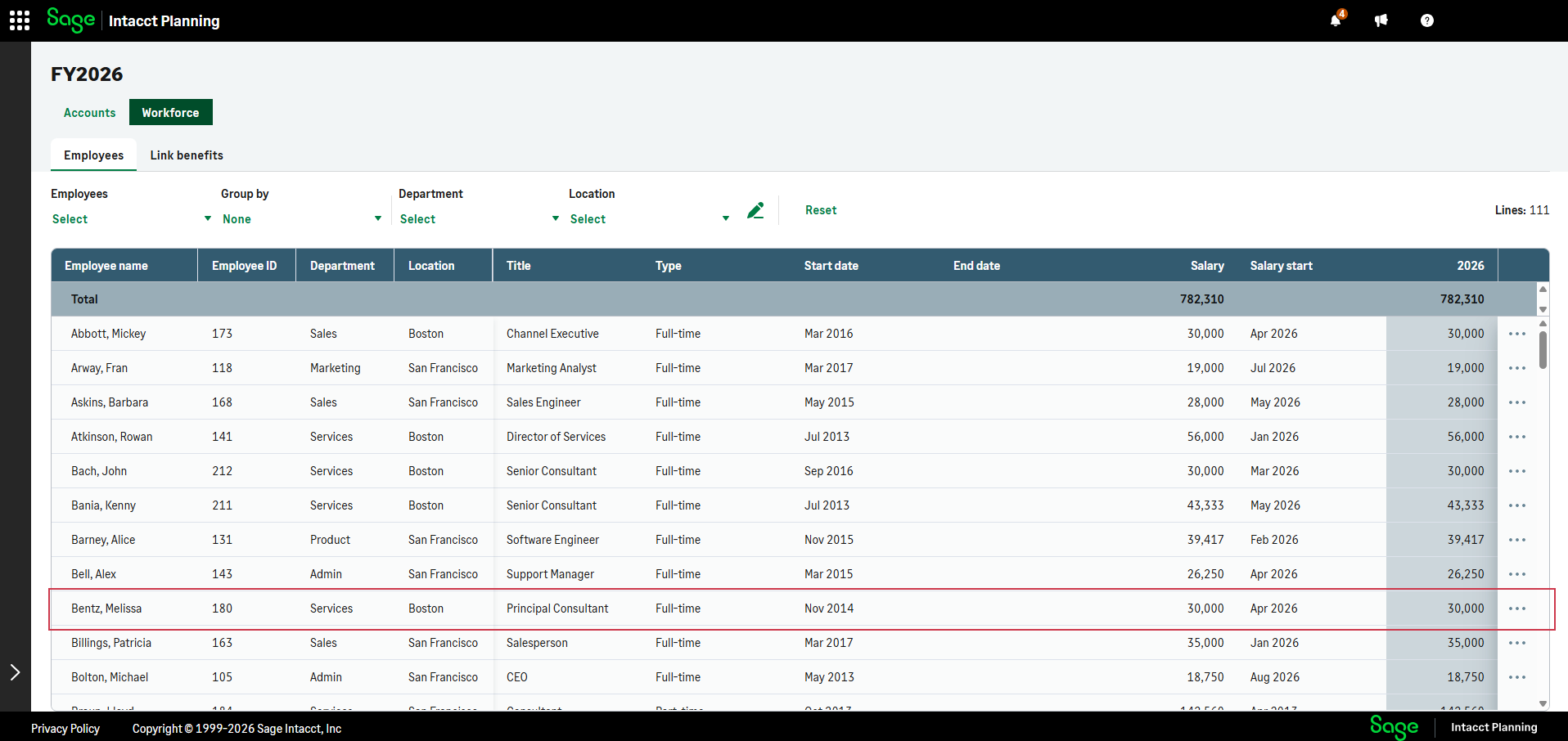
Melissa’s annual salary is £40,000, and her start date is from the beginning of April 2026. Therefore, her salary for 2026 appears as £30,000 (£3,333 per month X 9 months).
Is this helpful?
In this topic