Navigate the application
Let's learn how to find your way around the app and your plans.
Navigate the home screen
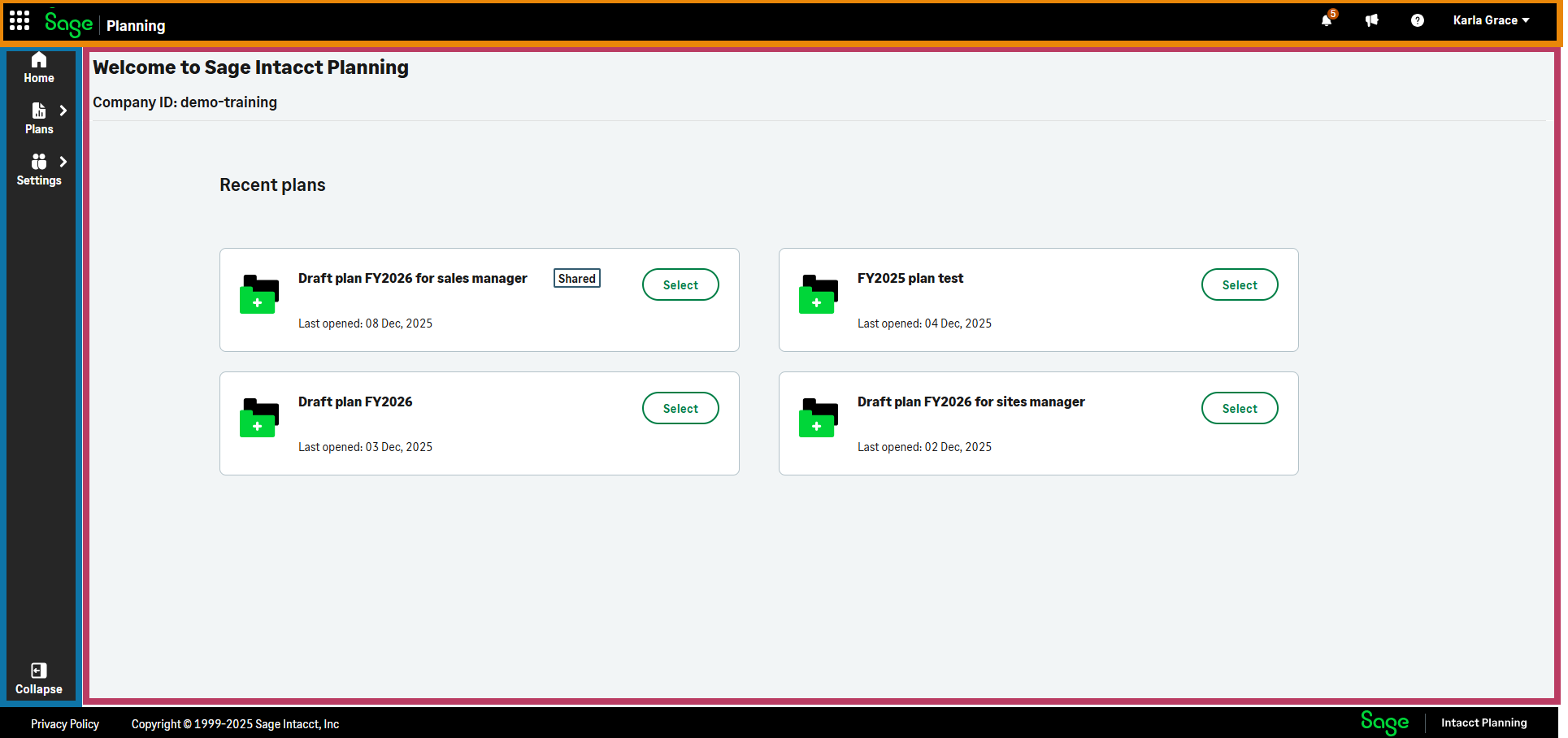
| Color | Section name | Description |
|---|---|---|
|
||
|
||
|
||
|
Sections that appear in the home screen |
||
 Notifications
 What's new
 Resources
Navigate a plan

The plan grid contains the following:
-
Total row: Shows the calculated total of each column. If you filter your plan, this also impacts the totals.
-
Plan lines: Each plan line in the grid is a unique combination of an account and associated dimensions values, such as department and location.
-
Time period columns: Breakdown of your plan line by time period and year totals.
In debit account plan lines, debits appear as positive values. However, in the total row, they are calculated as negative values.
Sort, filter, and change plan views

Use the following options to sort, filter, and change plan views:
-
Accounts: Filter plan lines by account.
-
Group by: Group plan lines by dimension.
-
Dimensions: Filter plan lines by dimensions like department and location.
-
 : Select which dimensions are available for filtering.
 -
Reset: Make all dimensions available for filtering.
-
Lines: Total plan lines in current plan. If filters are applied, this shows the number of plan lines that appear as well.
-
Leaf view: Toggle on to show all plans lines by accounts and dimensions. This is the default. Toggle off to show aggregated plan lines by accounts only.
For more information on plan view options, see Filter and group plan lines.
Switch between Sage apps
Sage Planning uses single sign-on (SSO). After you log in to Sage Intacct, you're also logged in to Planning and other SSO-enabled Sage apps. This enables you to switch between them easily.

-
In Planning, navigate to the left side of the top toolbar, and select
 .
. -
From the dropdown list, select a Sage app to open in a new tab.
Is this helpful?
In this topic