Sync accounts and dimensions
Only owners can sync accounts and dimensions.
All accounts and dimensions in Planning come directly from Sage Intacct Financials. Since you can add, modify, deactivate, or delete accounts and dimensions in Intacct Financials at any time, your plans can gradually fall out of sync. This can lead to inconsistencies between Intacct Financials and Planning.
Even though you want your existing plans to remain unchanged, you do want future plans to reflect the latest structure.
To address this issue, simply run the sync wizard. It checks to see if any changes have occurred in Intacct Financials, and aligns future plans with your current setup in Intacct Financials.
You are the CFO a home decor retail chain that operates several stores in New York. In mid-2025, your company closed its Manhattan location. While you removed all accounts and dimensions related to the Manhattan location from Intacct Financials, you still need that store’s data for reporting. You simply don't want the store to appear in future plans or reports.
To fix this, you run the sync wizard. It aligns your future plans to the latest accounts and dimensions structure in Intacct Financials. You keep past data where needed and remove outdated accounts and dimensions from future plans. Now, your 2026 plans and onwards are clean, current, and aligned with reality.
The ideal time to run the sync wizard is:
-
After you add new or modify existing accounts or dimensions in Intacct Financials.
-
Before you create a plan based on actuals from Intacct Financials.
Sync accounts
Start
-
From the side menu, select Settings > Permissions Management > Sync with Intacct > Sync accounts.
If all accounts in Planning match Intacct Financials, a confirmation message appears. If not, the sync wizard opens.
-
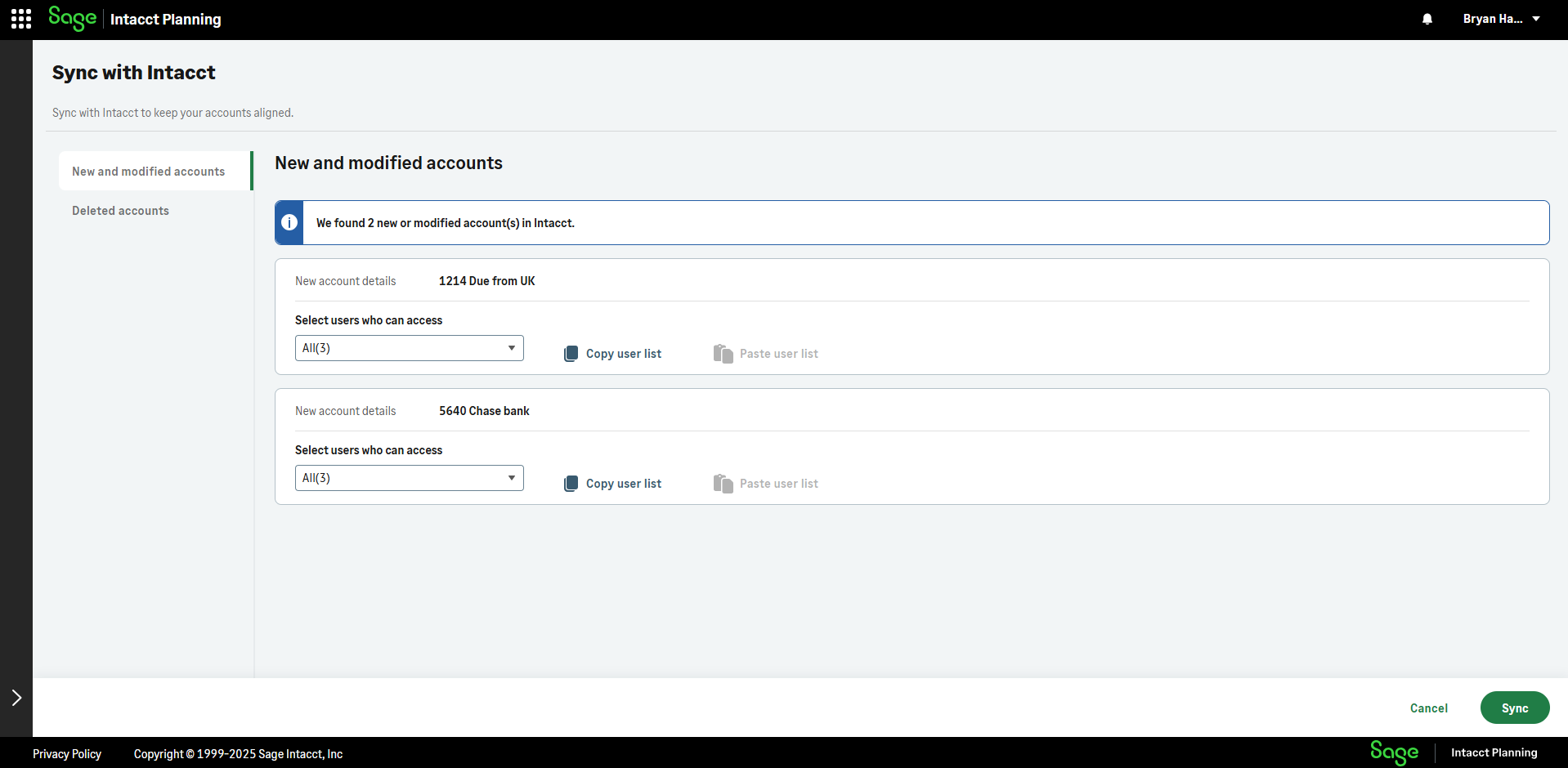
Navigate between the New and modified accounts and Deleted accounts tabs to view the changes.
To save time, you can define which users can access new and modified accounts, and copy and paste the user list to other accounts. You won't have to define this again in Permissions management.
-
Select Sync.
Leave the app open until sync is complete.
All accounts in Planning now match Intacct Financials.
A success / failure message appears in Notifications. To see the message, open  from the top toolbar.
Sync dimensions
Start
-
From the side menu, select Settings > Permissions Management > Sync with Intacct > Sync dimensions.
If all dimensions in Planning match Intacct Financials, a confirmation message appears. If not, the sync wizard opens.
-
Navigate between the New and modified dimensions and Deleted dimensions tabs to view the changes.
To save time, you can define which users can access new and modified dimensions, and copy and paste the user list to other dimensions. You won't have to define this again in Permissions management.
-
Select Sync.
Leave the app open until sync is complete.
All dimensions in Planning now match Intacct Financials.
A success / failure message appears in Notifications. To see the message, open from the top toolbar.
Deleted accounts and dimensions
The sync wizard removes accounts and dimensions that you deleted in Sage Intacct Financials from future plans, but they are still active in plans and versions that you created prior to running the sync wizard. But not to worry - they won't be included if you Save plan as an Intacct budget.
Changes to existing plans after you run the sync wizard
After you run the sync wizard, the following changes occur:
-
The sync is logged in notifications.
-
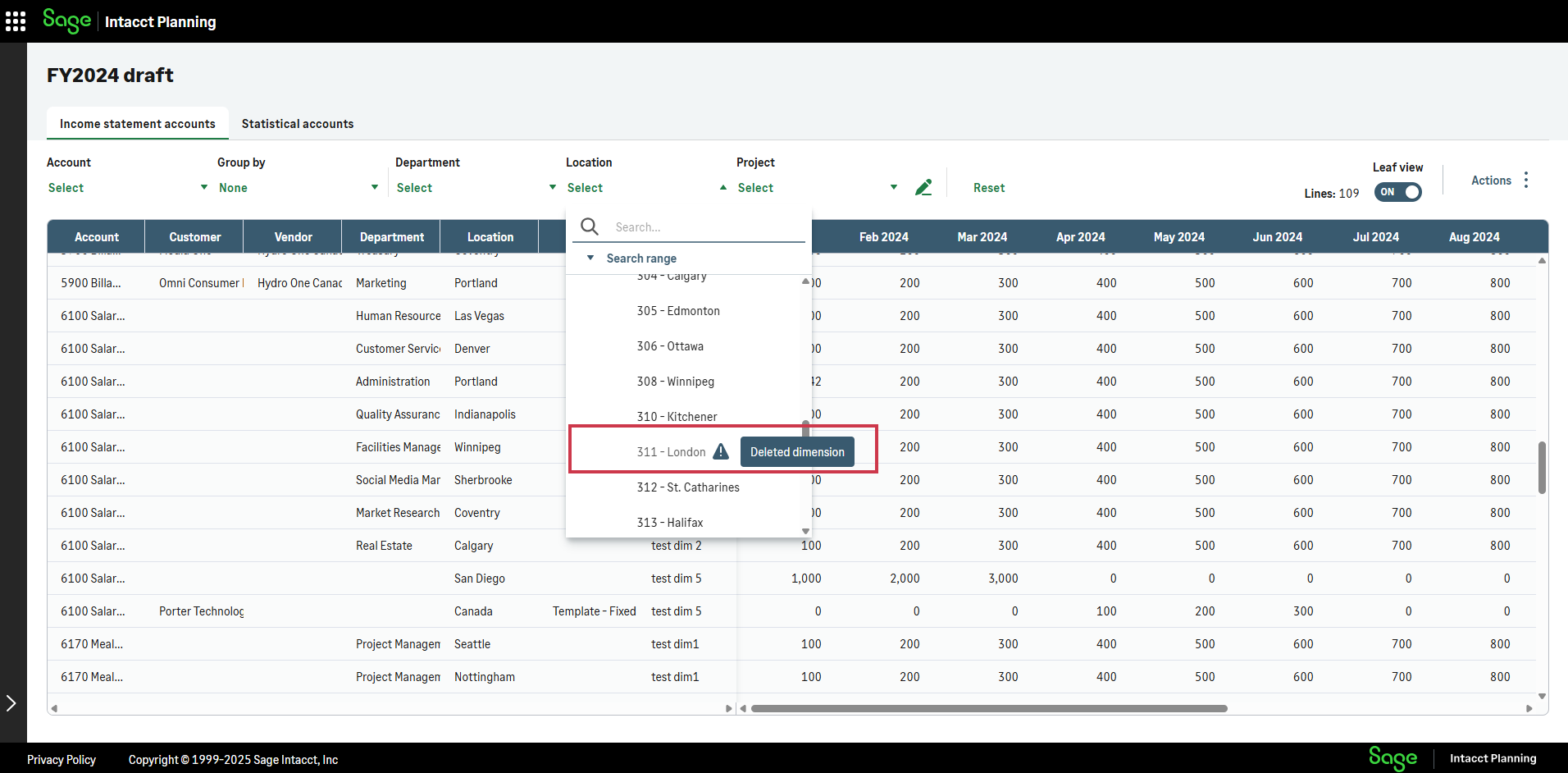
Deleted accounts or dimensions are flagged throughout existing plans for you to easily identify them.
-
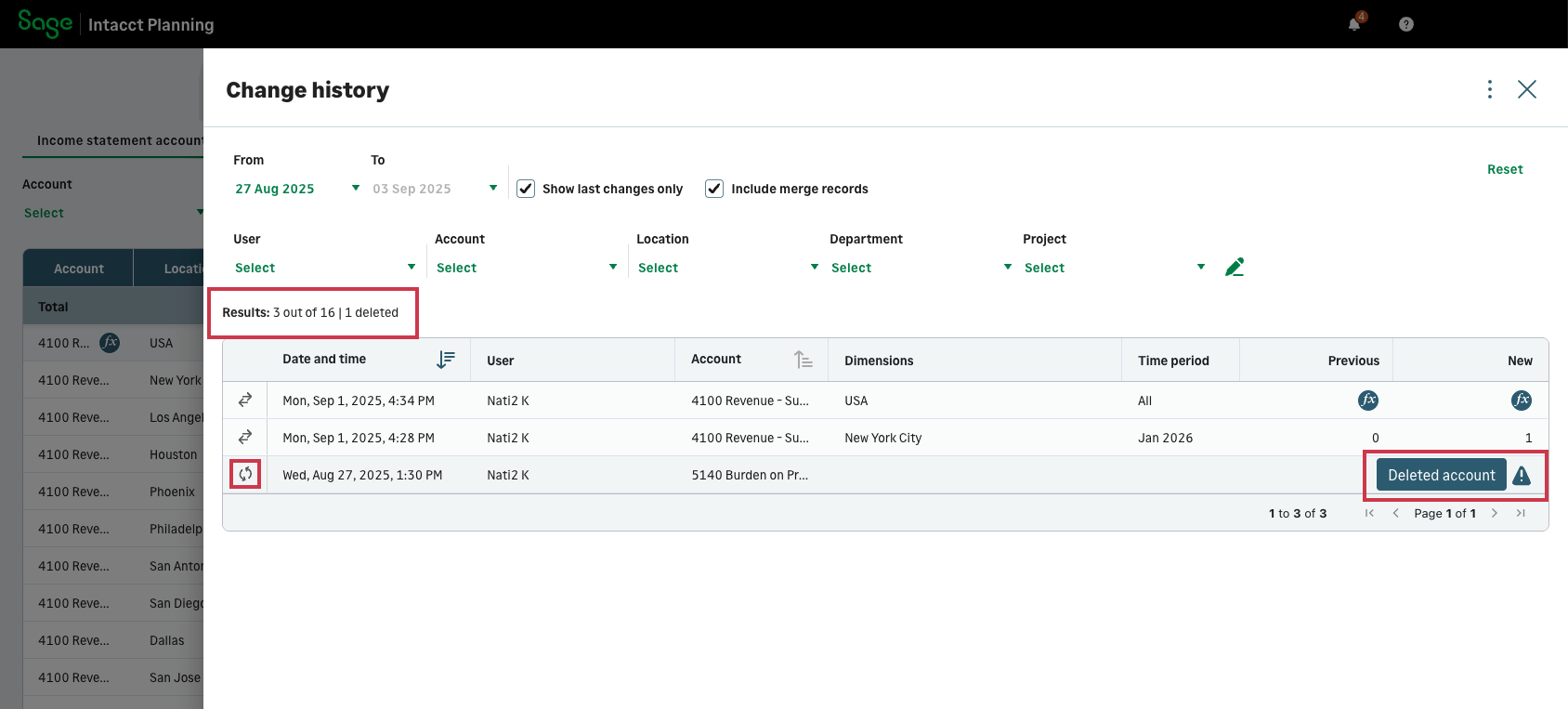
Deleted accounts or dimensions are flagged in the change history window of existing plans as follows:
-
Results: Deleted accounts and dimensions are counted separately from other changes, and aren't affected by any filters that you apply.
-
Icon:
 appears to the left of the row of the deleted account or dimension.
 -
New column:
 appears. If you hover over or tap the icon, the explanation appears.
-
Is this helpful?
In this topic