Manage user permissions
Only owners can manage user permissions.
Not everyone who has access to plans needs to see everything. In Sage Intacct Planning, you decide who can access what. You can define someone as an owner, grant full access, or limit them to just a slice of the plan. It’s all about giving the right people the right level of access without slowing anyone down.
You set permissions at the user level, so you only need to do it once, and it carries through to every plan and version. This keeps things simple, consistent, and easy to manage anytime.
There are 2 types of access:
-
Owner: Owners have full access to all accounts dimensions, and dimension values. They can use all Planning features, such as creating plans and versions, and managing user permissions.
-
User: Users can only access the accounts and dimensions you assign to them. They can only view and edit plan data within that defined scope.
You can also grant a user Extended access, which enables them to view, edit, and remove formulas in shared plans, even if the formula references data outside their assigned scope.
Samantha is the CFO. She doesn’t build plans, but she needs to see everything. The FP&A analyst checks the Owner checkbox which gives her full access. She can now view and manage plans as needed.
Fiona handles accounts payable in Los Angeles, San Diego, San Jose, and Sacramento. The FP&A analyst gives her access to the California location only.
Kristie is a controller in the USA. Some USA plan lines contain formulas that reference Canadian data. The FP&A analyst gives her extended access so she can view, edit, and delete those formulas, even though they include data outside her usual scope.
Define user permissions
Start
-
From the home panel, select Settings > Permissions Management to open a list of all Planning users in your organization.
-
Navigate to a user, select
 and then Edit permissions.
 -
Do one of the following:
-
Define a user as an owner: Check the Owner checkbox.
-
Grant full access: In each of the Accounts and Dimensions dropdown lists, select All.
-
Grant partial access: In each of the Accounts and Dimensions dropdown lists, select the accounts and dimension values you want the user to have access to. For more information, see Accounts and dimensions search tips.
-
Grant extended access: Check the Extended access checkbox.
-
-
Select Save.
After you grant user permissions, you still need to share a plan to give the user access to the plan. For more information see Share and unshare plans.
Accounts and dimensions search tips
Dimension dropdowns can have many values. You can use the text search and range search to quickly find values.
No value is also a value. When you assign permissions, consider if the user should have access to items with no value for a specific dimension.
Search in a dropdown list
To narrow your options in any dropdown list, search the list in one of the following ways:
-
Text search: Enter text in the search field.
-
Range search: To search by a range of ID numbers, select Search range and enter a valid ID in the From and To fields.
To start from the first available ID, leave the From field empty. To end at the last available ID, leave the To field empty.
-
Combined search: Search by text and ID range.
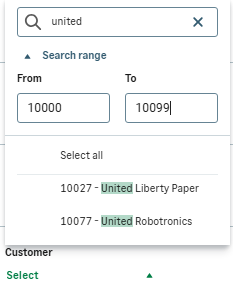
Example of a combined searchUnited Liberty Paper is a new customer that Patrick needs to consider in his plan for next year. The FP&A analyst wants to add the customer to Patrick's permissions but can't remember the full customer name. The analyst remembers the customer account starts with 100 and the name begins with united. A quick text search for united combined with a search range of 10000 to 10099 shows only two results.
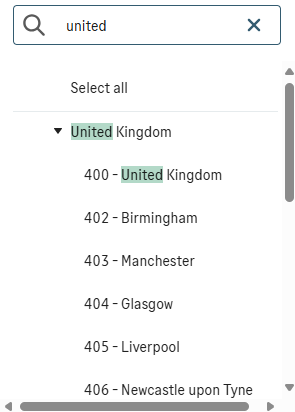
If your search finds a parent value, the child values also appear. If your search finds a child value, the parent value also appears.
Select multiple values from a dropdown list
Do one of the following:
-
Select individual values or Select all.
-
Deselect values with checkmarks or Deselect all.
-
Clear the search fields to keep selected values and start a new search.
If you select all the child values that appear in the search results under a specific parent value, a checkmark also appears next to that parent value.
From the Location dropdown list, Ian enters san in the text search. San Diego, San Francisco, San Antonio, and San Jose appear. USA appears as their parent value. Ian selects all four cities. A checkmark indicates they are selected. A checkmark also appears next to USA.
If you select a parent value, a checkmark also appears next to all its child values in the search results.
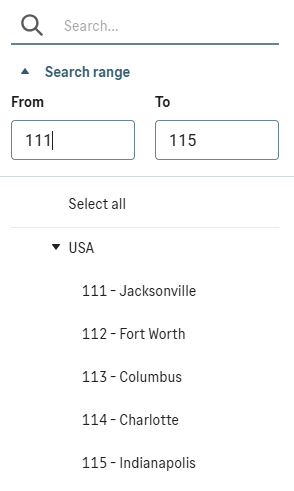
From the Location dropdown list, Ian enters a search range from 111 to 115. Along with locations 111 to 115, their parent value USA appears. Ian selects USA and a checkmark indicates the selection. A checkmark also appears next to locations 111 through 115.
If you clear search fields after you select values, the selected child values remain with a checkmark. However, the checkmark next to the parent value disappears, because the search results now include unselected child values.
From the Location dropdown list, Ian enters san in the text search. Four cities appear with USA as their parent value. When Ian selects all four cities, a checkmark also appears next to USA. Next, Ian wants to add Dallas to his selections. He clears san from the search field. The following happens:
-
The selected cities remain at the top of the list with a checkmark.
-
All other USA cities appear as unselected below the selected cities.
-
The checkmark next to USA disappears, because some child values are no longer selected.
Is this helpful?
In this topic