Modify plan data
The plan that you create is just the starting point. The true value of Sage Intacct Planning is the ability to update your data as the year unfolds. Whether you need to refine assumptions, adjust forecasts, or respond to market trends, Planning gives you the tools to keep your plan current and useful. Everyone with access sees updates in real time, so collaboration stays smooth.
There are multiple ways to modify your plan, depending on your need:
-
Edit a cell value just like in a spreadsheet.
-
Copy, cut, and paste cell values to other cells, plan lines, and even other plans.
-
Drag values to copy across cell values in the same plan line.
-
Drag logic to continue pattern across more cells in the same plan line.
-
Adjust values to add or subtract an amount or percent in relation to the current values.
-
Modify all plan line values of a single year with one simple action.
-
Edit a plan line that uses a formula or add a formula to a plan line. For more information, see Use formulas.
-
Refresh actuals to reflect the most current and accurate data.
Edit a cell value
Change a cell value quickly, just like in a spreadsheet.
Start
From the plan grid, select a cell and enter a new value.
You can edit cells that appear in white, but not shaded cells, such as totals, actuals, or plan lines that use formulas.
Copy, cut, and paste
Copy or cut single or multiple cell values and paste into other cells in your plan. You can even paste values into another plan.
Start
-
Select: In the plan grid, select a cell value to copy or cut. To select multiple cells, do one of the following:
-
Select, hold, and drag across multiple cells.
-
Select the first cell, then hold SHIFT on your keyboard and select the last cell you want to copy or cut.
-
-
Copy or cut: Do one of the following:
-
Right-click (or press and hold) in a highlighted cell and select Copy or Cut.
-
Use keyboard shortcuts: Ctrl+C to copy, or Ctrl+X to cut.
The values are saved in your clipboard.
-
-
Paste: Select one or more cells, and do one of the following:
-
Right-click (or press and hold) and select Paste.
-
Use keyboard shortcut Ctrl+V.
Repeat to paste the same value in another cell.
-
If you paste multiple values into just one cell, the values will paste into the same number of cells starting with the one selected. For example, if you copy the values of January through March and paste into April, the values will appear sequentially in April through June.
You can't cut or paste into shaded cells, such as totals, actuals, or plan lines that use formulas.
Your browser might ask you to allow the use of the clipboard for this site to paste data in your plan.
-
With Sage Intacct Planning open in your browser, navigate to the View site information icon that appears in the browser address bar to the left of the url address.
-
Allow clipboard. For example, in Chrome, go to Site settings > Privacy and security > Clipboard. Select Allow.
-
Refresh or reload the page (Ctrl+R).
Drag values to copy
Need a value to repeat itself month to month? You can drag values to copy across multiple time periods in the same plan line.
Start
-
Select a cell from the plan grid.
-
Navigate to the bottom right corner of the cell.
-
When your cursor becomes a plus sign, select and drag the value to neighboring cells in the same plan line. The value copies across.
Drag logic to continue pattern
Need to extend a pattern across time? You can drag the logic to more time periods in the same plan line.
Start
-
Select multiple cells.
-
Navigate to the bottom right corner of the right-most cell.
-
When your cursor becomes a plus sign, select and drag to neighboring cells in the same plan line.
The logic of the selected cells copies across.
In a plan line, the cell value is 1000 for Jan 2024 and 2000 for Feb 2024, an increment of 1000. If you highlight both values, and drag one cell to the right, Mar 2024 becomes 3000, an increment of 1000.
Adjust values
Use the adjust method to edit cell values in relation to the current value. You can adjust the value of a single cell or multiple cells.
Adjust single values
Start
-
Right-click (or press and hold) a cell and select Adjust.
-
In the Adjust value field, do one of the following:
-
Increase: Enter a positive value. For example: 1,000
-
Decrease: Enter a negative value. For example: -1,000
-
Percentage: Enter a positive or negative value and add the % symbol. For example: 10%, -50%
-
-
Select Apply.
Adjust multiple values
You can adjust multiple cells across a single plan line, except for cells that contain actuals.
Start
-
Select multiple cells, right-click (or select and hold) the highlighted area, and select Adjust.
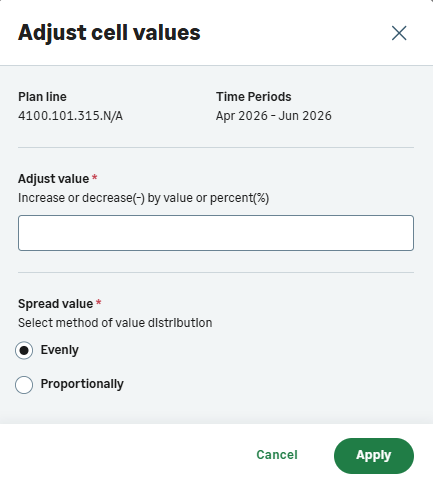
In the Adjust cell values dialog, the selected plan line and time periods that you are adjusting appear for easy reference.
-
In the Adjust value field, do one of the following:
-
Increase: Enter a positive value. For example: 1,000
-
Decrease: Enter a negative value. For example: -1,000
-
Percentage: Enter a positive or negative value and add the % symbol. For example: 10% or -50%
-
-
Select a suitable Spread value for how you want to distribute the value:
-
Evenly: Spreads the value you enter evenly across the selected cells.
-
Proportionally: Spreads the value you enter in proportion to the current value of each selected cell.
When you apply a percentage adjustment to multiple cells, you can only spread it evenly.
-
-
Select Apply.
Modify all plan line values of a single year
Why not save time and focus on the bottom line? No need to think about each month. You can change all the values of a single year with one action. Simply adjust or replace the total year value of a plan line, and select how to spread the value across all the cells.
Start
-
From the plan grid, right-click (or press and hold) in the year total column of a plan line, and select Modify.
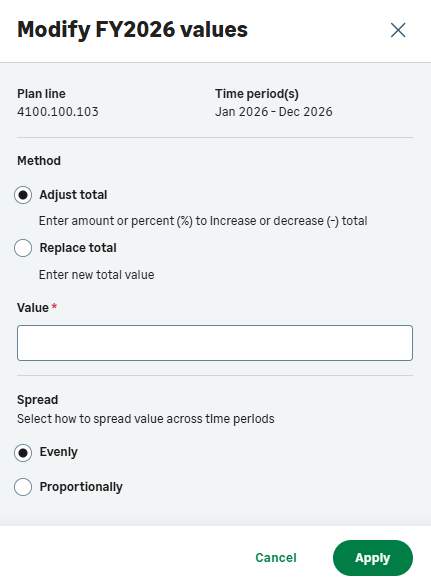
The Modify year values dialog shows the selected plan line and time periods for easy reference.
-
Select how to modify the data and enter a value:
-
Adjust total: Enter an amount or percent to increase or decrease the total.
-
Replace total: Enter a new total value.
-
-
Select how to spread the value across time periods:
-
Evenly: Spreads the adjustment or replaced value evenly.
-
Proportionally: Spreads the value in proportion to the current value of each cell.
-
-
Select Apply.
The following items can't be changed when you modify year totals:
-
Plan lines that use a formula
-
Cells that contain actuals
Coffee Bean expects balanced growth of its premium coffee product revenue after a successful marketing campaign. The store increases the product's revenue plan line year total by 7.5% and spreads it evenly to reflect the balanced growth.
| 3-month sample | ||||
|---|---|---|---|---|
| Oct | Nov | Dec | Year total | |
|
Original values |
150,000 | 130,000 | 100,000 | 1,600,000 |
|
Action: Adjust total by 7.5% (120,000) and spread evenly. |
160,000 | 140,000 | 110,000 | 1,720,000 |
A new office building opened near Coffee Bean, bringing more foot traffic. The store expects revenue from its premium coffee to rise with similar seasonal purchasing. The store increases the annual revenue plan line for the product by $120,000 and spreads the increase proportionally across all months, maintaining the seasonal pattern.
| 3-month sample | ||||
|---|---|---|---|---|
| Oct | Nov | Dec | Year total | |
|
Original values |
150,000 | 130,000 | 100,000 | 1,600,000 |
|
Action: Adjust total by 120,000 and spread proportionally. |
161,250 |
139,750 |
107,500 |
1,720,000 |
Coffee Bean has a subscription service that provides steady monthly revenue from local offices. Last year, some months were impacted by events that aren’t expected to repeat. Annual subscription revenue should increase and remain consistent throughout the year. The store sets a new annual total of $1,720,000 and chooses to spread it evenly across all 12 months.
| 3-month sample | ||||
|---|---|---|---|---|
| Oct | Nov | Dec | Year total | |
|
Original values |
150,000 | 130,000 | 100,000 | 1,600,000 |
|
Action: Replace total with 1,720,000 and spread evenly. |
143,333 | 143,333 | 143,333 | 1,720,000 |
A Coffee Bean branch launches a new product that is popular in other locations. The store revises its revenue forecast for the product to $1,720,000. Seasonal trends are expected to remain the same, so Coffee Bean chooses to spread the new total proportionally across all months.
| 3-month sample | ||||
|---|---|---|---|---|
| Oct | Nov | Dec | Year total | |
|
Original values |
150,000 | 130,000 | 100,000 | 1,600,000 |
|
Action: Replace total with 1,720,000 and spread proportionally. |
161,250 |
139,750 |
107,500 |
1,720,000 |
Edit a plan line that uses a formula
If your plan line uses a formula, it appears as shaded. You can only edit these cells in the formula editor, as described in Add or edit a formula.
Is this helpful?
In this topic