View change history
As you work on your plan you and your colleagues naturally make many changes. How do you see the audit trail? In Sage Intacct Planning, you'll find this in the Change history screen.
Start
-
Open a plan.
-
From Actions, select View change history.
-
Filter which changes appear in the change history grid. For more information, see Change history filters.
-
View the changes in the change history grid. For more information, see Change history grid.
-
Select
 and then select one of the following:
-
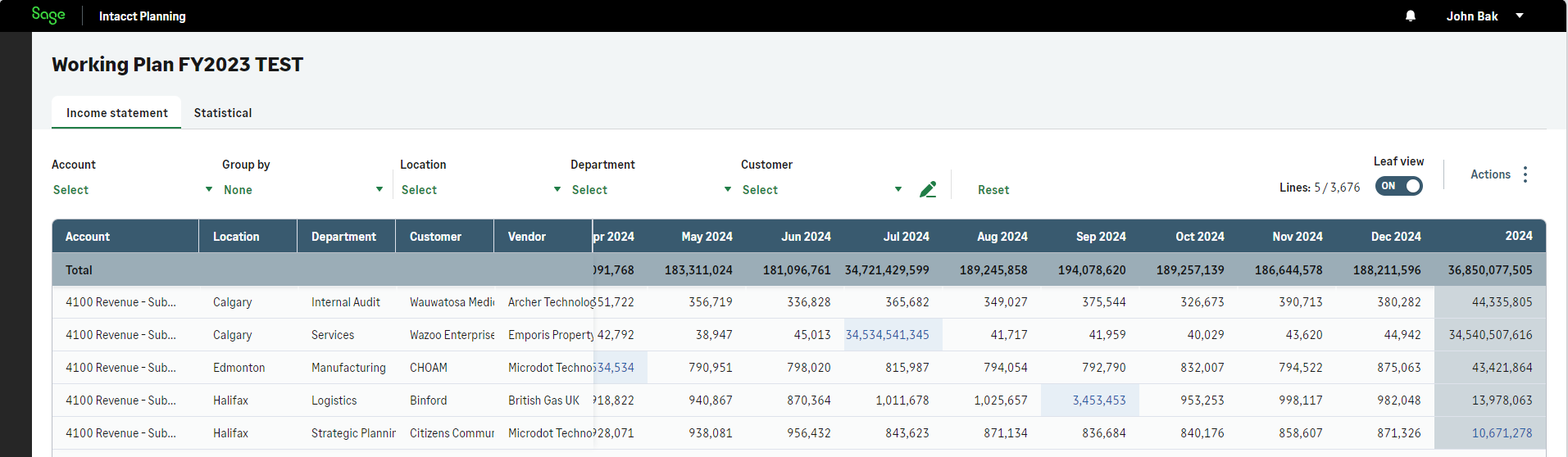
Show changes in your plan: Enables you to view the changes in your plan which appear with a light blue shade.
-
Merge all changes: Ignore selected filters and merge changes from current version to another plan.
-
Merge filtered changes: Merge changes per your selected filters from current plan to another plan.
For more information, see Merge changes.
-
Export: Downloads the filtered changes to an Excel file.
-
Change history filters
The following table describes the change history filters:
| Filter | Description |
|---|---|
|
From |
Select the date from when to show changes. |
|
To |
Automatically set to the current date so you always see the latest changes. |
|
Show last changes only |
Determine the extent of cell history that appears:
|
|
Include merge records |
Determine if merged changes appear:
|
|
User / Account / Dimensions |
Filter which changes appear by user, account, or dimension. |

|
Select which dimensions to filter by. |
|
Reset |
Reset all filters to default. |
| Description of change history filters | |
Change history grid
The following table explains the change history columns:
| Column | Description |
|---|---|
|
Icon |
|
|
Date and time |
The date and time of the change. |
|
User |
Name of user that made the change. |
|
Account |
The account that the change affected. |
|
Dimensions |
Dimensions associated to the affected account. |
|
Time period |
Month of change. If the year total value changed, the year appears, for example 2028. If a formula was added, removed, or changed, All appears. |
|
Previous |
The cell value before the change. If a formula changed, |
|
New |
The cell value after the change. If a formula was added, |
| Description of the change history table columns | |
 signifies a change made by a user.
 signifies a change made by a merge. See
  appears. Hover over it to view the previous formula.
Is this helpful?
In this topic