Filter and group plan lines
Each plan line is a unique combination of an account and associated dimension values. Since your plan can include many plan lines, it can be difficult to navigate them all. The dropdown lists help you filter and group your plan lines. Use filters to focus on specific accounts or dimensions like department or customer. Apply a grouping to organize plan lines by dimension values like location. These options make it easier to compare, analyze, and refine your plan.
Filter plan lines
To filter the plan lines, use the account and dimension dropdown lists that appear above the plan grid.

Start
-
Select an account or dimension dropdown list.
To control which dimensions appear in the plan grid, select
 and select dimensions to include.
 -
In the dropdown list, select values to filter your plan lines.
If you filter a dimension for only one value, the column for that dimension is removed from the grid. For example, if you filter your plan for New York only, the Location column no longer appears since New York appears in the Location filter above the grid.
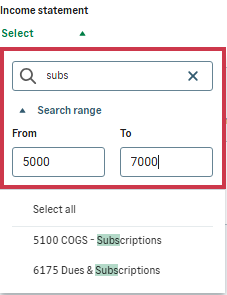
Tips for searching dropdown listsTo narrow your options in a dropdown list, search the list in one of the following ways:
-
Text search: Enter text in the search field.
-
Range search: To search by a range of ID numbers, select Search range and enter a valid ID in the From and To fields.
To start from the first available ID, leave the From field empty. To end at the last available ID, leave the To field empty.
-
Combined search: Search by text and ID range.
Tips for selecting multiple values-
Add selections: Select individual values or Select all.
-
Remove selections: Deselect values with checkmarks or Deselect all.
-
Select and continue your search: After you select values, clear the search fields to keep selected values. You can then search and select more values.
Tips for searching and selecting locationsThe Locations dropdown list can include parent and child values.
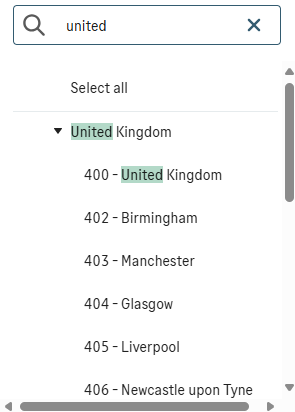
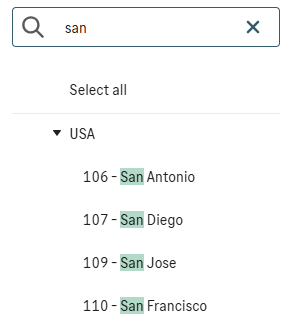
In Planning, parent values, USA for example, hold the aggregate data of all their child values but no data of their own. Each parent contains a coded child value that is nearly identical to the parent, for example 100-USA. This value acts just like other child values.
-
If your search finds a parent value, the child values of that parent also appear.
-
If your search finds a child value, the parent value also appears.
-
If you select all the child values that appear under a specific parent value, a checkmark also appears next to that parent value.
-
If you select a parent value, a checkmark also appears next to all its child values in the search results.
-
-
(Optional) Select another dropdown list and repeat step 2.
Group plan lines
You can group the plan lines by a single dimension to sort the plan grid according to that dimension.
Start
-
From the Group by dropdown list above the plan grid, select a dimension. The plan lines are grouped by the selected dimension.
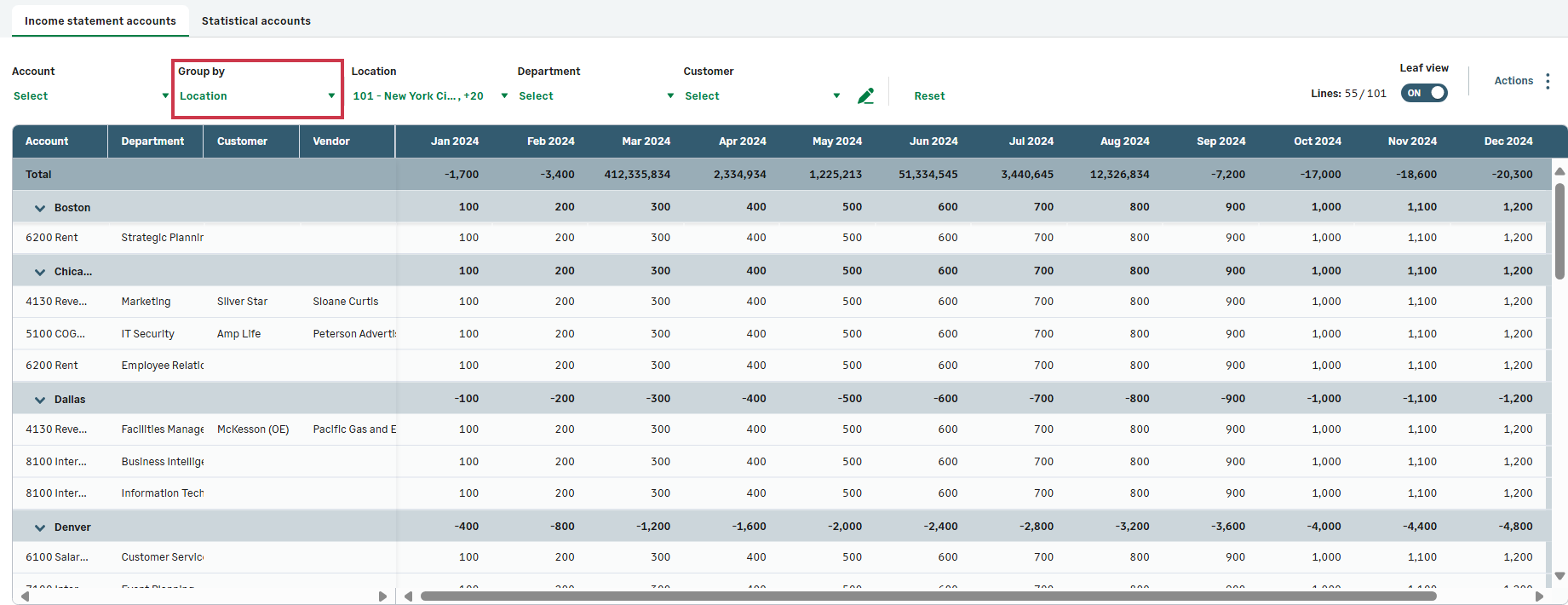
If the plan includes plan lines with no value for the Group by dimension, these plan lines are grouped as No value.
View plan summary
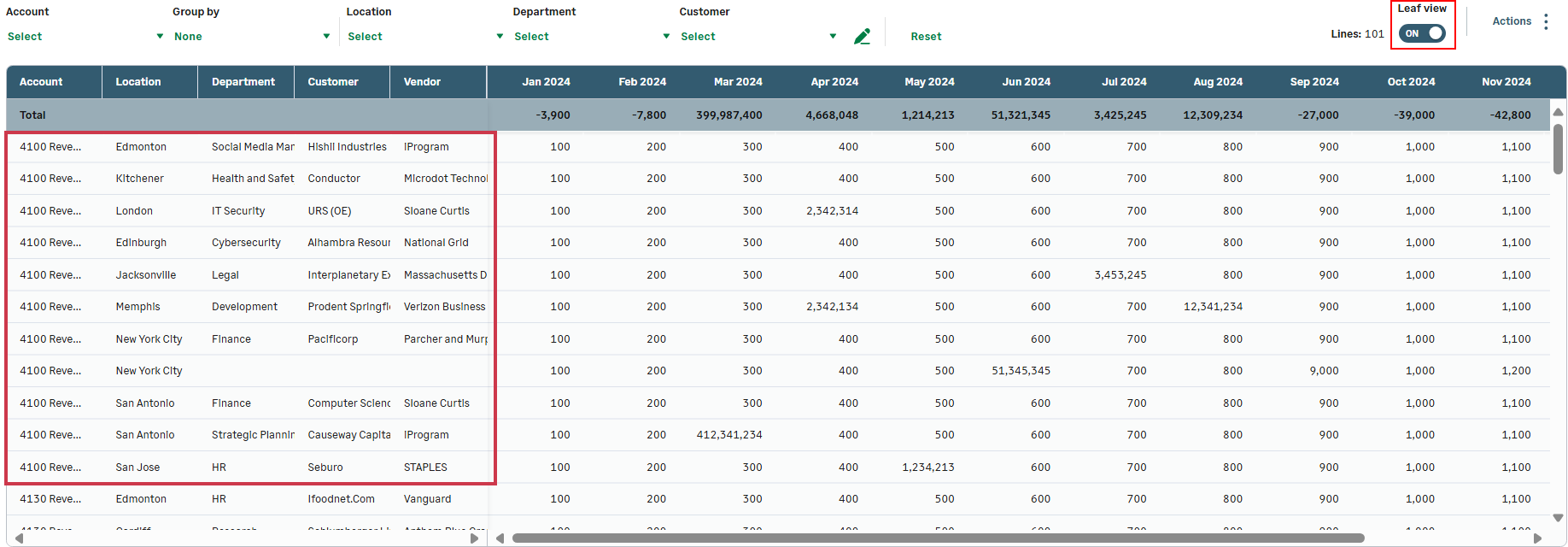
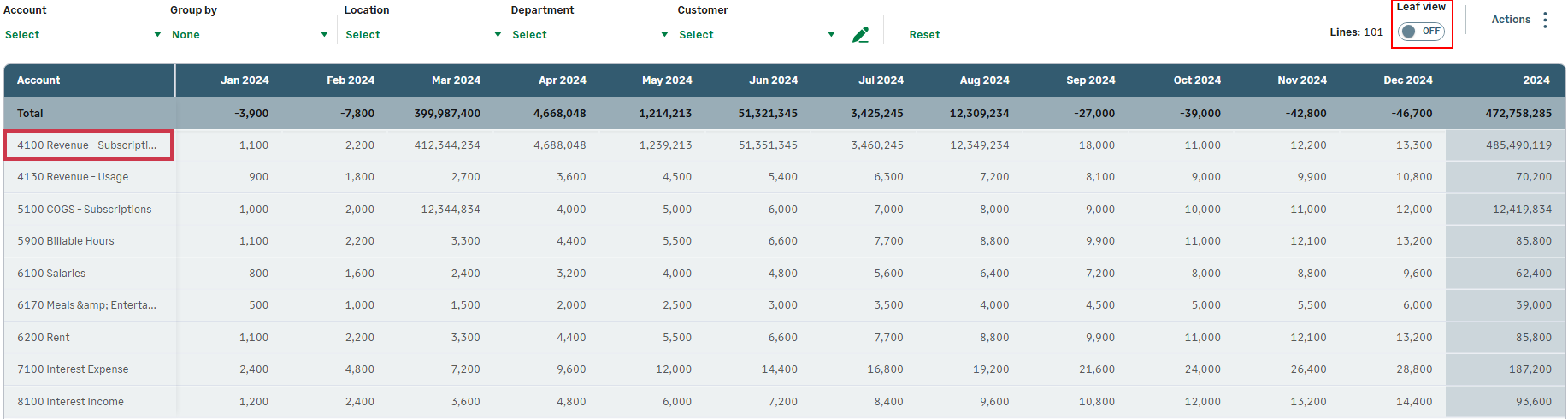
The Leaf view toggle gives you control over the level of detail in your plan grid.
To collapse the detailed plan lines and view a summary of the plan with aggregate data in one line per account, toggle Leaf view off. The dimension columns disappear. Each plan line shows the totals of a selected account, as a sum of all selected dimension filters.
Leaf view on
Leaf view off
Is this helpful?
In this topic