Owners only
Manage account groups
Leverage your account groups structure from Sage Intacct to give your plans a familiar look and feel.
You select the top-level account groups to use throughout your plans, and its entire underlying hierarchy is included.
Operating Expenses is a top-level account group, and includes all the account groups that roll up to it.
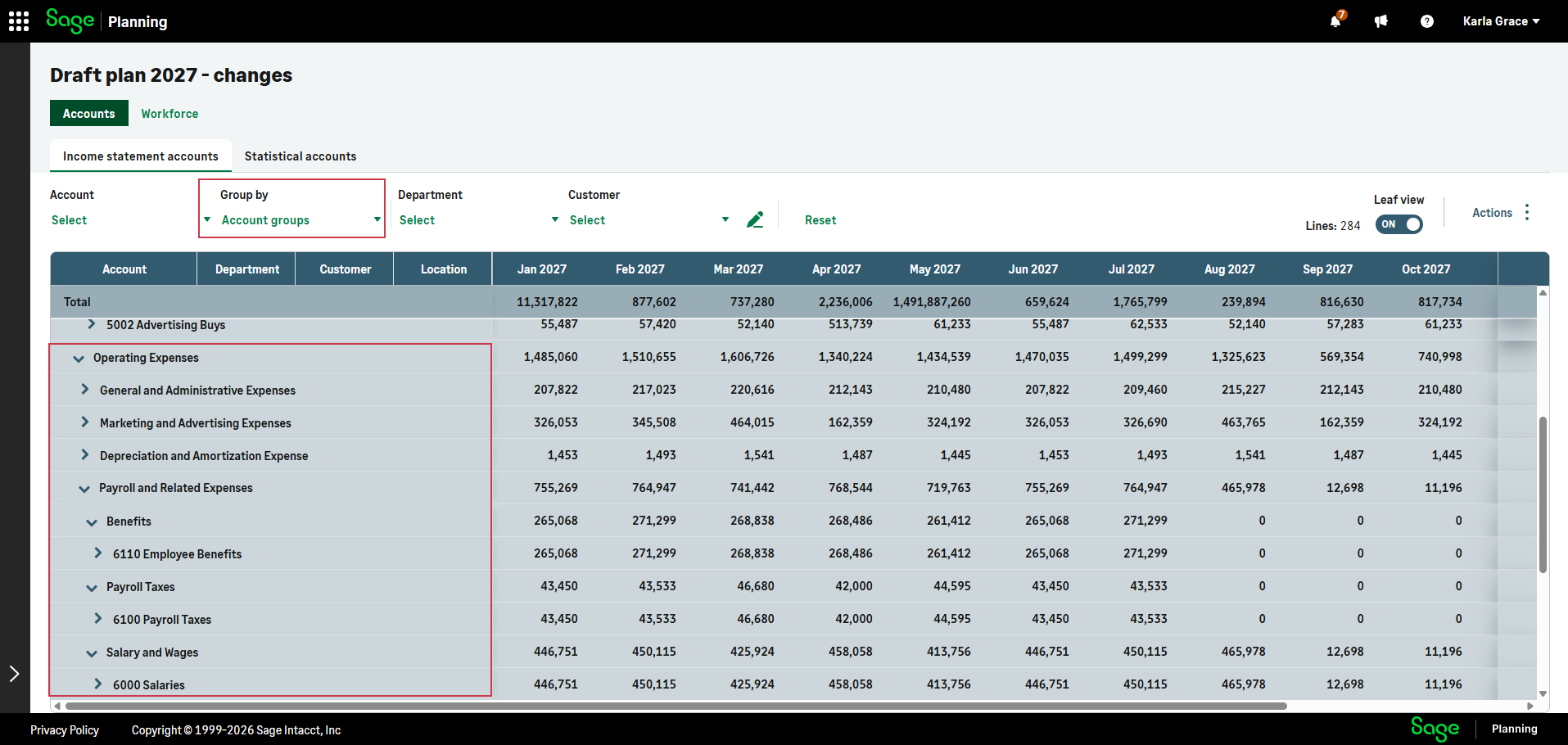
Account groups in Intacct
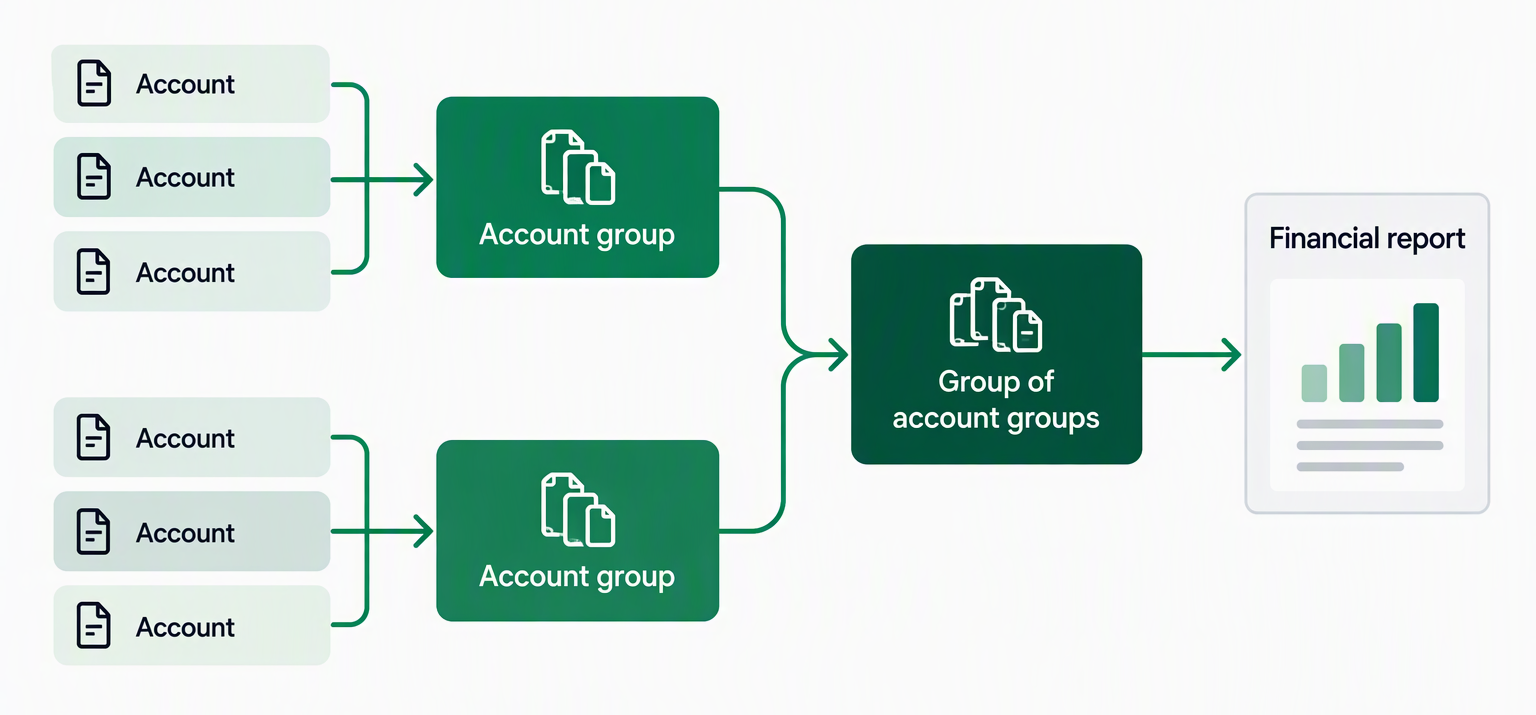
Refer to the below diagram to understand how account groups work in Intacct:
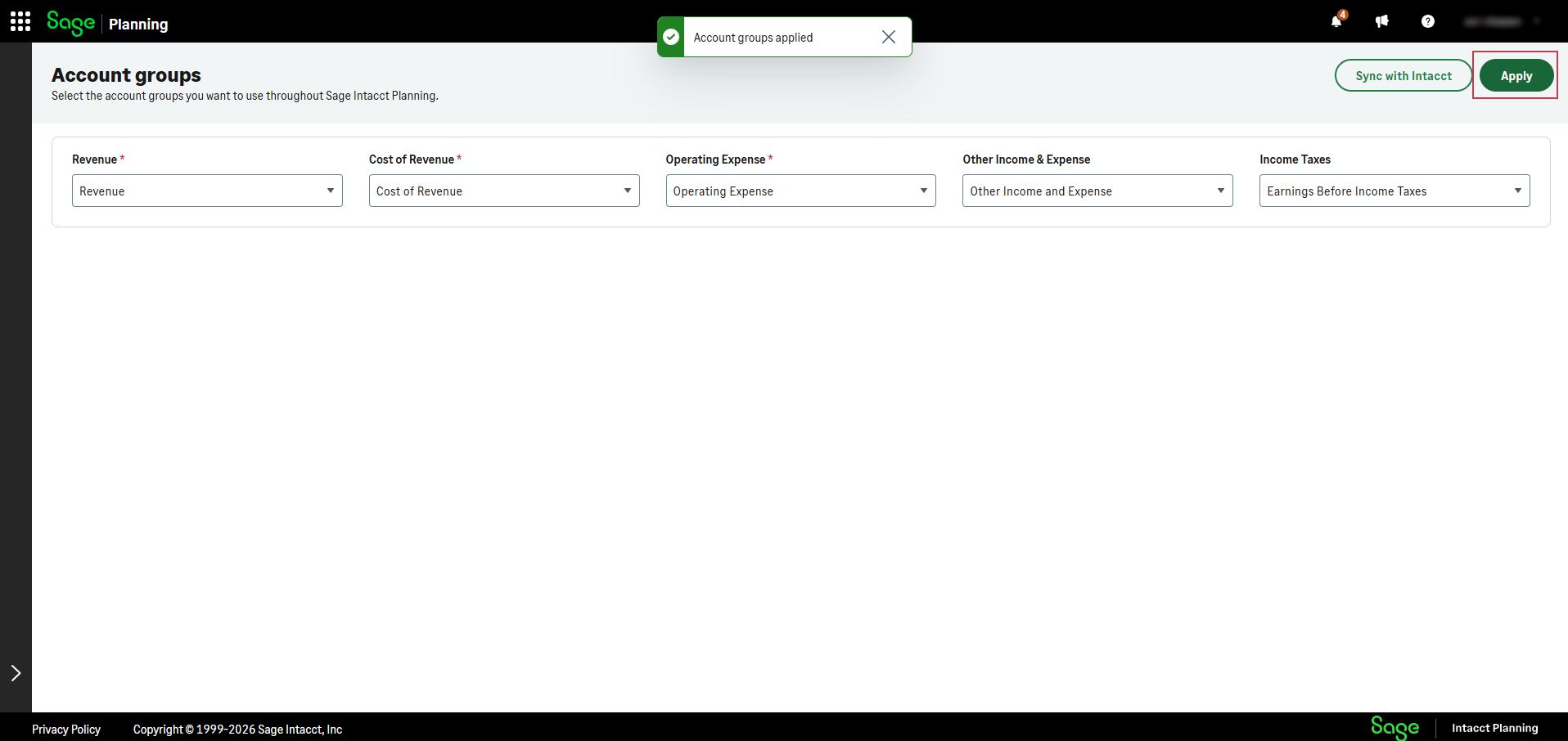
Apply account groups in Planning
After you apply account groups in Planning, you can't remove them. To keep account groups out of Planning, don't apply them.
If you make changes to account groups in Intacct, sync the changes with Planning as described in Sync account groups.

To ensure that all the account groups you select appear in Planning, first do the following in Sage Intacct:
-
Set the account group type to Group of account groups.
-
Add at least 1 income statement account to the top-level account group you want to use in Planning.
-
From the side menu, select Settings > Account groups.
-
In the dropdown lists for Revenue, Cost of Revenue, Operating Expense, select an account group to use in Planning. For each category, select a unique account group.
-
(Optional) Select account groups for Other Income and Expense and Income Taxes.
-
Select Apply.
Remember that you select the top-level account group, and each selected account group includes its entire underlying account group hierarchy.
View plan by account groups
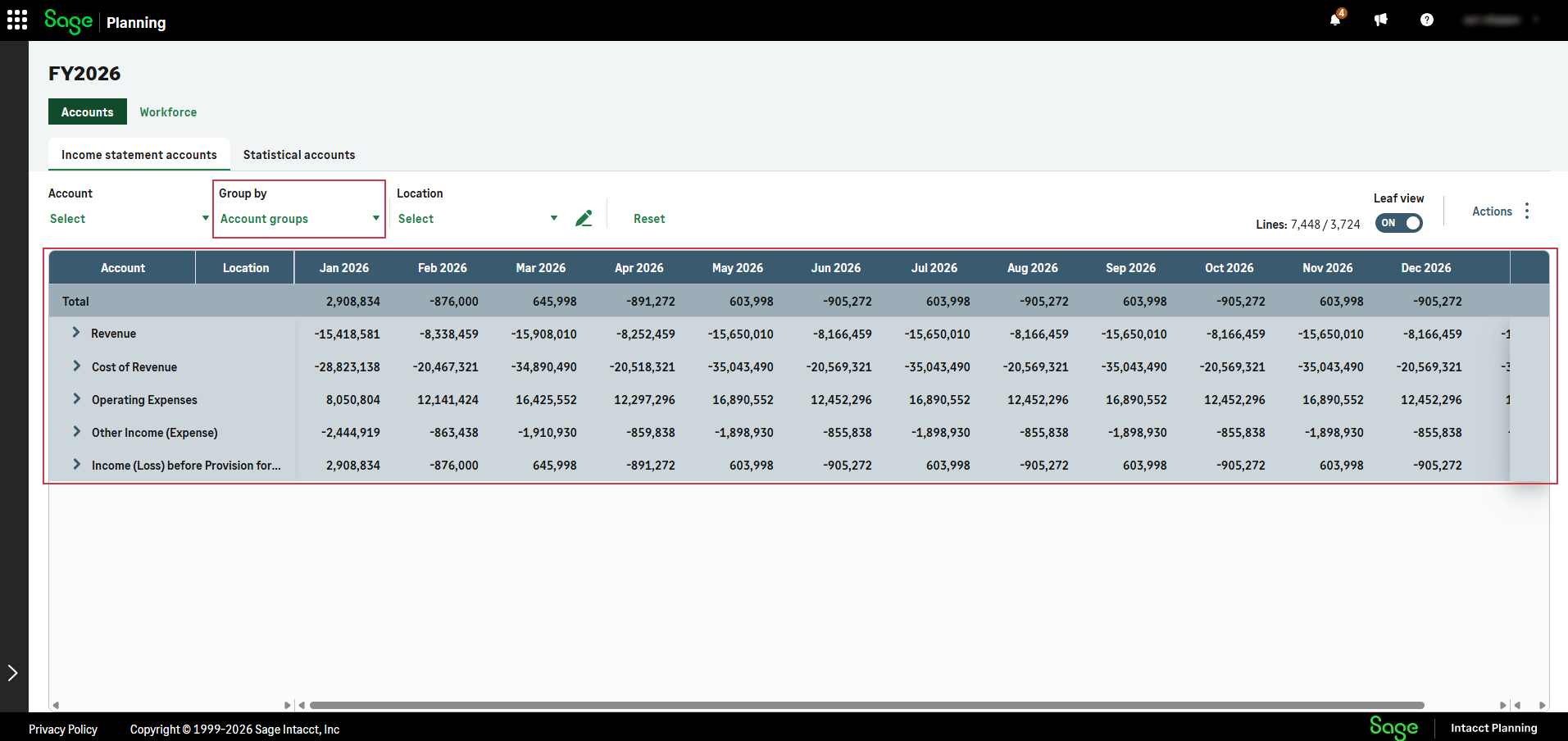
After you apply account groups, all plan views are grouped by account groups by default.
You can change this view from the Group by dropdown list which appears above the income statement grid.
Filter plan by account group
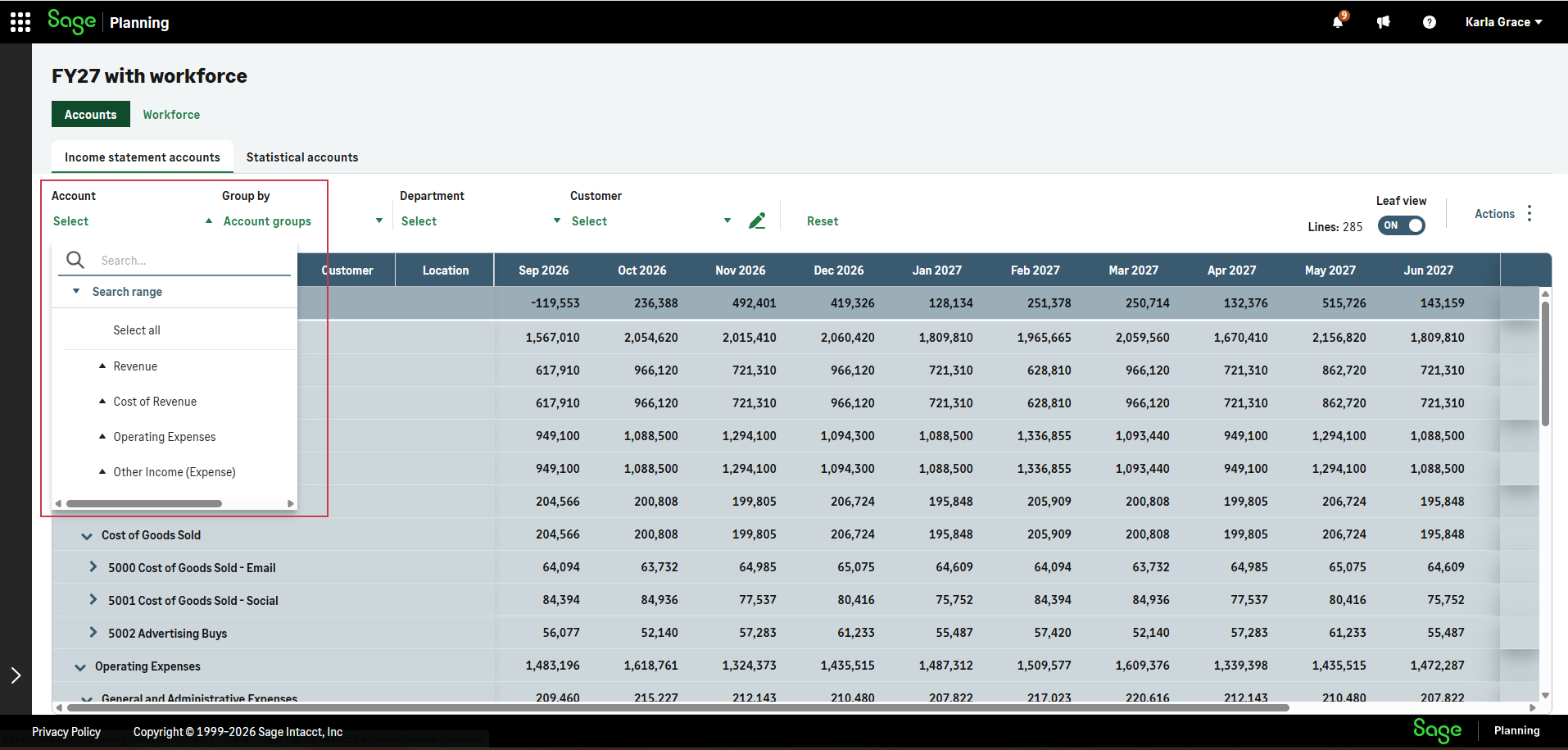
After you apply account groups in Planning, you can filter the income statement accounts grid by account groups from the Accounts dropdown list.
Sync account groups
Sync account groups in the following scenarios:
-
You modify account group details or structure, or add a new account group, in Intacct.
-
You add a new account in Intacct, and then Sync accounts. Sync account groups to see it in Planning.
-
You notice that some account groups don't appear in your plans. Add them to a group in Sage Intacct and then sync account groups.
-
You notice that duplicate account groups appear in your plan, as described in How do I fix a duplicate account groups issue?.
-
From the side menu, select Settings > Account groups.
-
Select Sync account groups.
Sync is complete when the Account groups synced confirmation message appears.
Account groups FAQ
How do I fix a duplicate account groups issue?
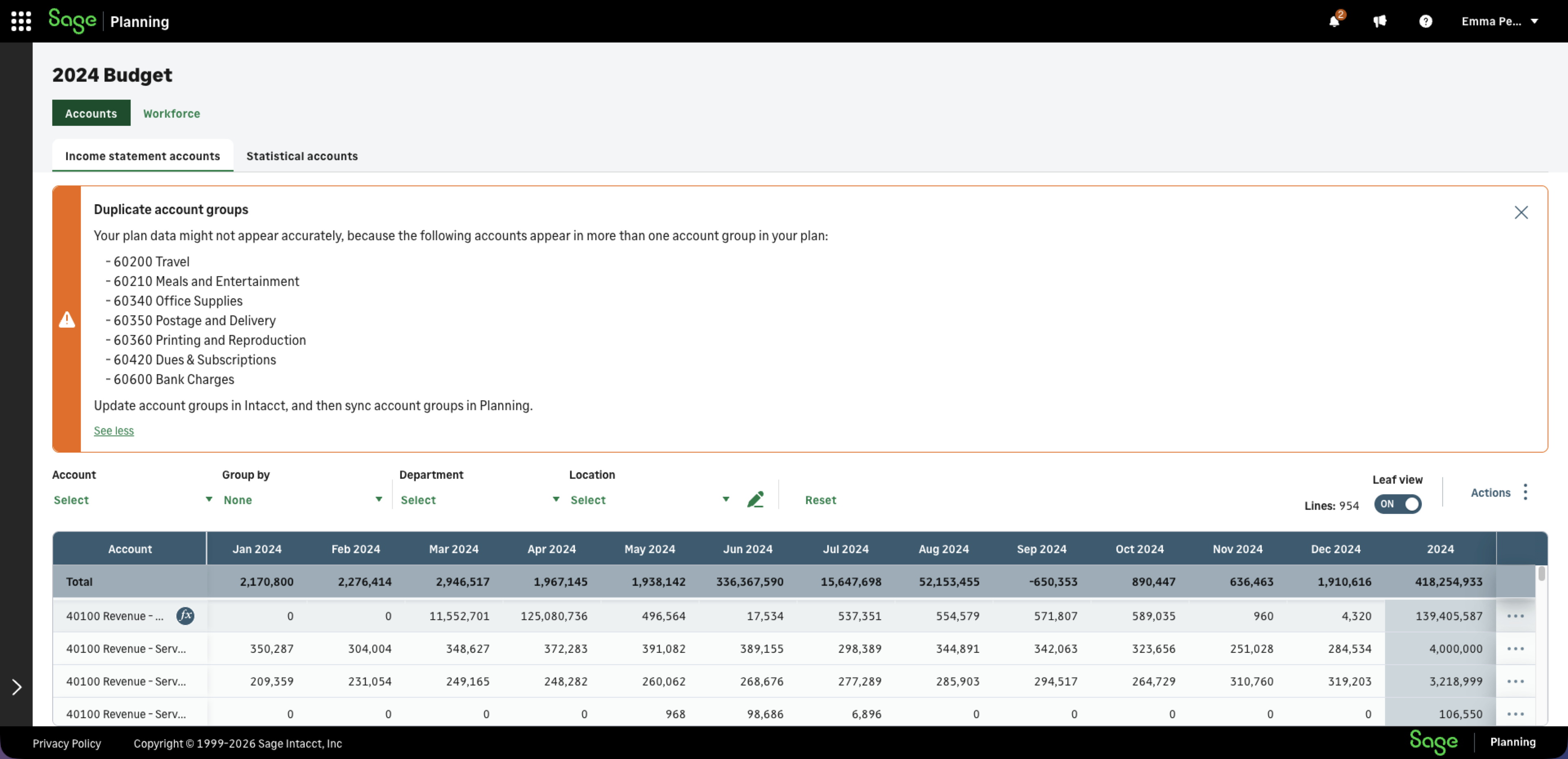
After you apply account groups in Planning, you might see a persisting Duplicate account groups warning message in the income statement accounts tab.
This occurs when certain accounts appear in more than one account group in Sage Intacct, which causes your Planning data to appear as inaccurate.
-
In Sage Intacct, go to General ledger > All > Financial report structures > Account groups.
-
Remove the duplicate accounts.
-
In Planning, run sync as described in Sync account groups.
Why don't I see all my accounts when I group by account groups?
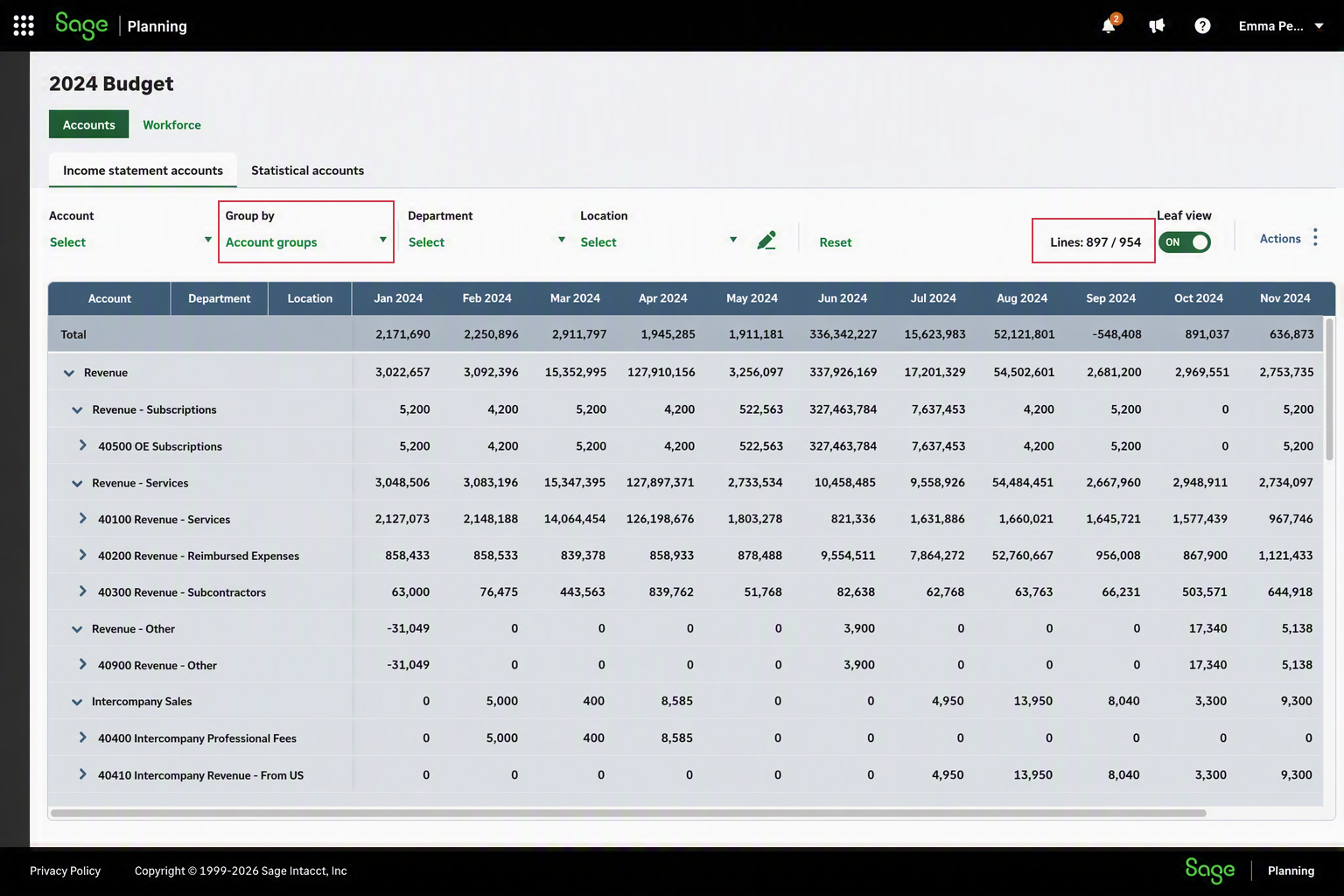
After you apply account groups in Planning, and select to group your plan by account groups, you might notice that some of your accounts do not appear in the grid. This occurs because there are some accounts in Intacct that are not part of any account groups.
To fix this, place all your income statement accounts under account groups in Intacct, and run sync as described in Sync account groups.
In the plan below, only 897 of 954 accounts appear when group by account groups is enabled.
Is this helpful?
In this topic