Explore the home screen
Familiarize yourself with the sections that appear in the home screen:
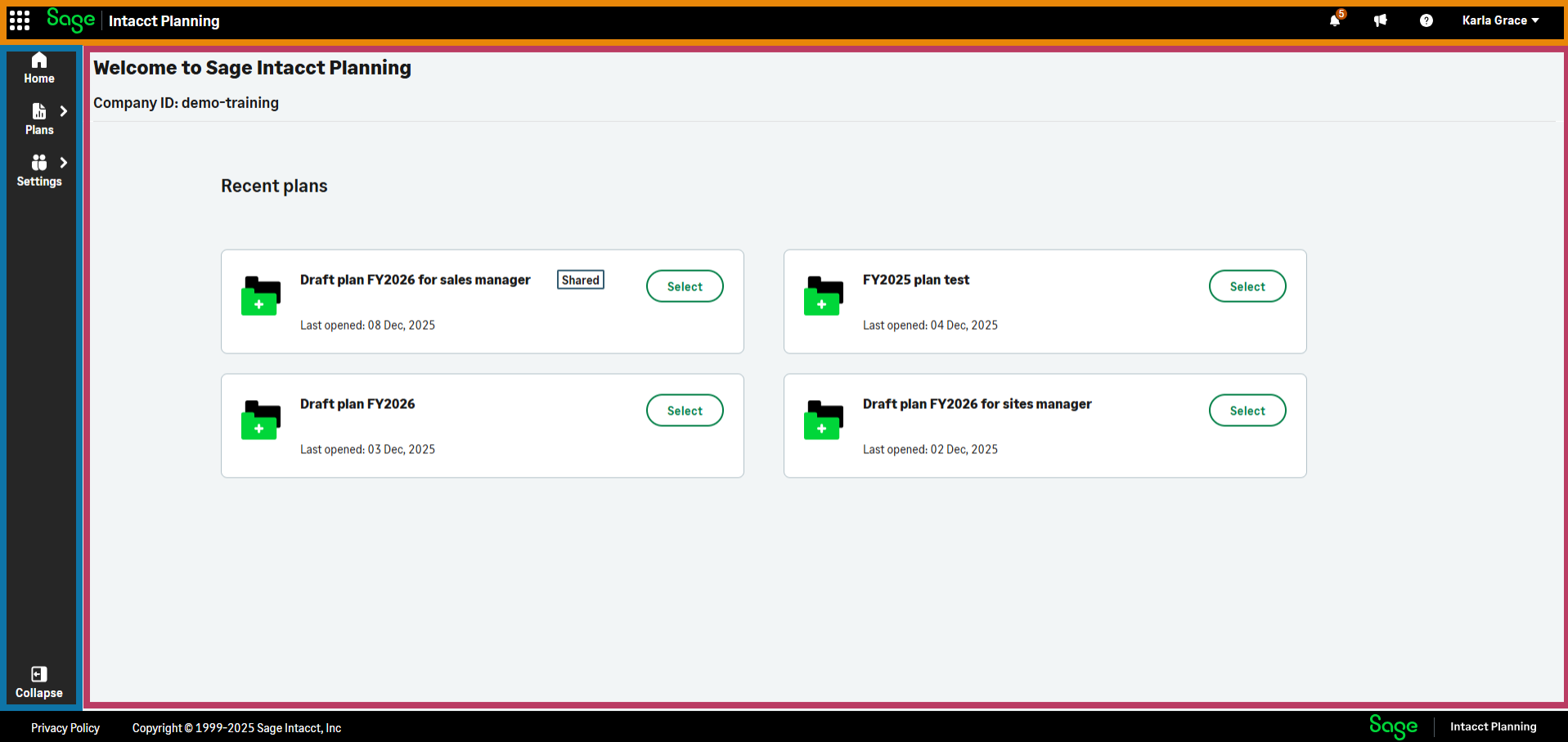
| Color | Section name | Description |
|---|---|---|
|
||
|
||
|
||
|
Sections that appear in the home screen |
||
 Notifications
 Feedback form
 Resource center
Switch between Sage apps
Enhanced Planning uses single sign-on (SSO). After you log in to Sage Intacct Financials, you're also logged in to Planning and other SSO-enabled Sage apps. This enables you to switch between them easily.
Start
-
In Planning, navigate to the left side of the top toolbar, and select
 .
. -
From the dropdown list, select a Sage app to open in a new tab.
Is this helpful?
In this topic